

A 32-inch 4K monitor gives you roughly 140 pixels per inch, which is the point where Photoshop panels, Lightroom grids and tone curves stop looking soft under a magnifier. That density, combined with a physical size that fits a second window beside your catalog view, is why the best 32 inch monitors for photo editing keep topping search results for retouchers and studio photographers in 2026.
Size alone is not the story. The gap between a panel that looks pleasant in a shop demo and one you can trust for a print run comes down to color gamut coverage, a published accuracy figure, brightness you can dim to a controlled level, and whether the manufacturer shipped a calibration report in the box. We went through twelve 32-inch 4K options across IPS, VA and OLED to sort the color-critical choices from the ones that merely claim wide gamut.
Our approach was practical rather than lab-bound: published specifications, owner feedback, and how each panel behaves in a real editing session where a toolbar sits on screen for eight hours. If you are still choosing a display rather than a size, our broader guide to monitors for photo editing covers the sizes between 24 and 32 inch as well.
Table of Contents
- Top 3 Picks for Photo Editing (October 2026)
- All 12 Best 32 Inch Monitors for Photo Editing Compared in 2026
- 1. ASUS ROG PG32UCDM 32 Inch 4K QD-OLED – Editor’s Choice for Color Work
- 2. ViewSonic VP3256-4K 32 Inch ColorPro – Best Value Factory-Calibrated Panel
- 3. BenQ PD3205U 31.5 Inch 4K – Best for Calibration and Matched Multi-Monitor Work
- 4. ASUS ProArt PA329CRV 31.5 Inch 4K – Best Wide-Gamut IPS with the Longest Warranty
- 5. BenQ MA320U 32 Inch 4K – Best for MacBook Photo Workflows
- 6. KOORUI 32 Inch 4K OLED – Best Value OLED for Dark Tonal Work
- 7. Dell S3225QS 32 Inch 4K VA – Best for High-Frame Playback on a Budget
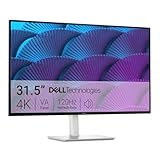
- 8. Dell 32 Inch 4K S Series VA – Best for a Two-Screen Desk
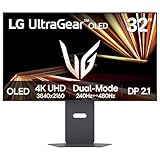
- 9. LG 32GX870A-B 32 Inch 4K Tandem OLED – Best for HDR Grading Headroom
- 10. LG 32UP83AK-W 31.5 Inch 4K IPS – Best All-Round IPS for Everyday Editing
- 11. LG 32GX850A-B 32 Inch 4K Glossy WOLED – Best for Motion and Video Work
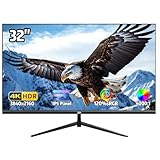
- 12. ZZA 32 Inch 4K IPS – Budget Pick for a Large 4K Canvas
- How to Choose a 32 Inch Monitor for Photo Editing
- Frequently Asked Questions
- What type of monitor is best for photo editing?
- What is the best 32-inch monitor for photo editing?
- Which monitor is best for Photoshop?
- How bright should a monitor be for photo editing?
- What resolution monitor is best for photo editing?
- What do most professional photographers use to edit photos?
- Is OLED a good choice for photo editing?
- Final Verdict: Which 32 Inch Monitor Should You Buy in 2026
Top 3 Picks for Photo Editing (October 2026)
Three monitors stand apart for color work right now. The ASUS ROG PG32UCDM leads on measured accuracy and contrast, the ViewSonic VP3256-4K delivers the most honest factory calibration per pound spent, and the BenQ PD3205U remains the easiest to tune and to match across two screens.

ASUS ROG PG32UCDM
- 32 inch 4K QD-OLED
- 99% DCI-P3 and 10-bit
- Delta E under 2
- 1000 cd/m2 peak with uniform brightness


All 12 Best 32 Inch Monitors for Photo Editing Compared in 2026
The table below covers every 32-inch 4K display in this roundup with its panel type, gamut coverage, connectivity and the reason it earns a place on the shortlist.
| Product | Specs | Action |
|---|---|---|
| ASUS ROG PG32UCDM |
|
Check Latest Price |
| ViewSonic VP3256-4K |
|
Check Latest Price |
| BenQ PD3205U |
|
Check Latest Price |
 ASUS ProArt PA329CRV ASUS ProArt PA329CRV |
|
Check Latest Price |
 BenQ MA320U BenQ MA320U |
|
Check Latest Price |
 KOORUI 32 inch 4K OLED KOORUI 32 inch 4K OLED |
|
Check Latest Price |
 Dell S3225QS Dell S3225QS |
|
Check Latest Price |
 Dell 32 inch 4K S Series Dell 32 inch 4K S Series |
|
Check Latest Price |
 LG 32GX870A-B LG 32GX870A-B |
|
Check Latest Price |
 LG 32UP83AK-W LG 32UP83AK-W |
|
Check Latest Price |
 LG 32GX850A-B LG 32GX850A-B |
|
Check Latest Price |
 ZZA 32 inch 4K IPS ZZA 32 inch 4K IPS |
|
Check Latest Price |
1. ASUS ROG PG32UCDM 32 Inch 4K QD-OLED – Editor’s Choice for Color Work
ASUS ROG PG32UCDM 32 Inch 4K 240Hz OLED Gaming Monitor QD-OLED
32 inch 4K QD-OLED, 240Hz
99% DCI-P3, 10-bit, Delta E under 2
1000 cd/m2 peak brightness
Pros
- Published Delta E under 2 with 99% DCI-P3 and true 10-bit color
- 1000 cd/m2 peak brightness gives real HDR headroom
- Matte coating cuts the reflections that plague glossy OLEDs
- Graphene film heat management with 3-year burn-in coverage
- Uniform brightness mode keeps exposure consistent across the panel
Cons
- No factory calibration report or hardware puck included
- OLED burn-in remains a consideration for static UI elements
- Bulkier footprint than comparable IPS 32 inch 4K monitors
The PG32UCDM is a 32-inch panel that publishes a Delta E under 2 alongside 99% DCI-P3 coverage and true 10-bit output, and it holds a 4.6 rating across more than 600 owner reviews. Few 32-inch panels in this group publish an accuracy figure at all. The combination of documented accuracy and a 1,500,000:1 contrast ratio is what makes it our top pick for tone work on dark files.
In practice, the difference shows in shadow detail. A night shot that blocks up into a flat gray on an IPS panel keeps separation between deep blues and near-black on this screen, and the 1000 cd/m2 peak brightness means you can work in a room with daylight coming through the window without the picture looking dim by comparison.
Heat management is the part worth understanding rather than ignoring. The custom heatsink, airflow path and graphene film are designed specifically to slow the degradation that makes photographers nervous about OLED panels, and ASUS pairs that with a three-year warranty that includes burn-in coverage, which most 32-inch OLEDs do not offer.
A uniform brightness setting is included, and for editing that is more useful than it sounds. Rather than the panel dimming large bright areas to conserve power, the setting holds luminance steady across the whole screen so a white background at the edges matches the center.
Who benefits most from this OLED
Photographers grading high-contrast or low-key imagery, and hybrid editors who cut video on the same screen, get the most from the contrast and brightness pairing. The 240Hz refresh also lets you scrub 120 fps capture without judder while keeping the full 4K resolution.
Anyone who values a matte surface will too. Glossy OLED coatings behave like mirrors in a lit room, and the anti-reflective treatment here keeps the image readable next to a window.
Where it falls short
It is a gaming-first product, so there is no printed calibration report in the box and no uniformity puck to run hardware calibration. Plan on adding a colorimeter if you want to correct the panel yourself, and note the footprint is deeper than IPS alternatives.
Static interface elements remain the long-term concern with any OLED, and Photoshop’s panels and the macOS dock are exactly that. Rotate or hide fixed elements and you reduce the risk.
2. ViewSonic VP3256-4K 32 Inch ColorPro – Best Value Factory-Calibrated Panel
ViewSonic VP3256-4K 32 Inch 4K UHD ColorPro Monitor, HDR10, 65W USB C, sRGB
32 inch 4K IPS ColorPro
100% sRGB, factory Delta E under 2
Pantone Validated, 65W USB-C
Pros
- Factory calibrated 100% sRGB with Delta E under 2 accuracy
- Pantone Validated certification for design workflows
- Single USB-C cable carries video
- data and 65W charging
- Adjustable stand plus daisy chain for multi-monitor setups
- Three-year warranty on parts
- labor and backlight
Cons
- 60Hz refresh rate with no adaptive sync
- SDR-focused ColorPro line without DCI-P3 or OLED wide gamut
- Bulky 24-pound chassis
For most photographers working in sRGB, this is the monitor I keep recommending, because it removes the single biggest variable: manufacturers tend to skip, so you do not have to guess whether the panel is calibrated. The ColorPro line arrives factory-tuned to 100% sRGB with a Delta E under 2, and the screen holds that figure across the panel rather than at one central sample point.
Owner feedback is unusually consistent. Reviewers single out the color accuracy and the single-cable USB-C workflow, with 74% of ratings at five stars, and the recurring caveat is simply the 60Hz refresh rate, which matters little for stills.
The daisy chain support is a quiet asset for two-desk setups. Plug one cable from the workstation into the ViewSonic, run DisplayPort out to a second display, and you avoid the second cable run that usually litters the back of the desk.
At 350 nits with a 1000:1 contrast ratio, this is a conventional IPS panel. Shadows in a dark image will not separate the way they do on the OLED above, and there is no wide gamut headroom beyond sRGB for heavy saturation work.
What this monitor is genuinely good at
Print preparation, catalog work and e-commerce product editing, where the deliverable is sRGB and you want a predictable starting point. The DICOM-SIM mode also makes it usable for medical and simulation viewing that demands grayscale fidelity.
The fully adjustable stand covers tilt, swivel, rotate and height, so you can set the top of the panel at eye level without a riser, which is what you want for judging images at a consistent angle.
Where the limits show
There is no HDR story beyond HDR10 support on an SDR panel, and 60Hz with no adaptive sync rules it out if you also edit motion. Wide-gamut work in Adobe RGB or DCI-P3 needs a different panel.
The 24-pound chassis is the heaviest of the IPS options here, so plan the desk accordingly. USB-C charging is capped at 65W, which will not carry a larger workstation laptop at full speed.
3. BenQ PD3205U 31.5 Inch 4K – Best for Calibration and Matched Multi-Monitor Work
BenQ PD3205U Mac-Ready Monitor 32″ 4K UHD 99% Rec.709 & sRGB, IPS, DeltaE ≤3, ICC Sync, Calibration Report, AQCOLOR, Uniformity HotKey Puck Ergonomic DisplayPort, USB-C (90W), USB Hub
31.5 inch 4K IPS
99% sRGB and 99% Rec.709
Delta E of 3 or less, per-unit report
90W USB-C
Pros
- Factory calibration with a per-unit report and Delta E of 3 or less
- 99% sRGB and 99% Rec.709 with Pantone and Calman validation
- Hotkey Puck G2 for fast profile and brightness switching
- Two units can color-sync for consistent multi-monitor editing
- Matte anti-glare panel stays readable beside a window
- 90W USB-C powers a laptop over one cable
Cons
- Built-in speakers are thin and tinny
- KVM and puck input switching reported as slow and sometimes unreliable
- Ports sit on a downward-facing narrow ledge
- Modest brightness in very sunny rooms
The PD3205U arrives with a calibration report for that specific unit, and that is rarer than manufacturers would like you to believe. Combined with 99% sRGB and Rec.709 coverage and Pantone plus Calman validation, it gives you a documented baseline to calibrate against rather than a marketing label.
What makes it distinctive is the Hotkey Puck G2, a puck that switches input sources and profiles from the desk. When you move between a desktop workstation and a laptop, or between sRGB and a soft proofing profile, it removes the menu diving that eats editing time.
Two units can be color-synced to each other, which solves a problem most 32-inch buyers never anticipate. A second panel of a different size or brand will rarely match, and seeing two different blacks side by side makes subtle retouching decisions unreliable.
Reviewers frequently describe this model replacing an Apple display at a fraction of the cost, and they cite the matte finish and calibration documentation as the deciding factors. About 74% of ratings sit at five stars.
Why calibration buyers pick this one
The included report means you can see factory variance before you start, which is the basis for any corrective profile. Add a colorimeter and you have a defensible starting point rather than a guess.
The puck also makes it practical to run a profile switch for print soft proofing during a client review, then hand the puck back for normal work, without touching the on-screen display.
Where it frustrates people
Source switching through the KVM and puck is the most repeated complaint: reviewers report it as slow and occasionally unreliable, so keep a direct cable within reach as a fallback.
The port ledge is narrow and faces downward, which is awkward to reach, and the stand does not rotate to a full 90 degrees for portrait work. Speakers are present but thin.
4. ASUS ProArt PA329CRV 31.5 Inch 4K – Best Wide-Gamut IPS with the Longest Warranty
ASUS ProArt PA329CRV 32 Inch 4K DCI-P3 USB-C Professional Monitor for Mac
31.5 inch 4K IPS, 98% DCI-P3
Calman Verified, Delta E under 2
96W USB-C, DisplayHDR 400
Pros
- 98% DCI-P3 coverage with Calman Verified Delta E under 2
- VESA DisplayHDR 400 certification for HDR editing
- 96W USB-C docking keeps a laptop workspace to one cable
- Calibration report included in the box
- Five-year warranty longer than rivals in this class
Cons
- 60Hz refresh rate with no high-speed mode
- On-screen menu and controls are dated compared with newer rivals
- 170-degree viewing angle is slightly narrower than typical 178-degree IPS panels
The ProArt PA329CRV is the IPS answer to the OLED problem. It covers 98% of DCI-P3, ships with a printed calibration report claiming Delta E under 2, and unlike an OLED it has no burn-in exposure when you leave a histogram pinned to a panel for a full day.
It is also the only monitor here with a five-year warranty, three years standard plus two more with online registration. For a tool you plan to keep for the length of a career, that coverage changes the calculation more than a small panel improvement.
DisplayHDR 400 certification means HDR content can be previewed on this screen even though peak brightness is modest for a dedicated HDR display. For most photo editors that is sufficient for grading decisions, and the wide gamut does the heavy lifting.
About 65% of ratings are five stars, lower than several rivals. Reviewers credit the gamut, the calibration report and the USB-C dock, while the recurring gripes are the 60Hz rate, dated on-screen menus and occasional IPS glow on dark images at night.
Best reasons to choose this panel
Long editing days with static toolbars suit an LCD. There is no organic material to degrade, so the panel behaves identically in year five as in week one.
It suits mixed photo and video work, where DCI-P3 coverage matters for grading and the 96W USB-C port means a laptop and monitor run on one cable. The DisplayPort MST support also allows daisy chaining a second display.
Trade-offs worth knowing
60Hz is the limiting factor if you edit motion, and the glossy screen finish will pick up reflections from a lamp or window behind you, which is worth thinking about before a late-night session.
Reviewers also mention occasional IPS glow, a faint effect visible in near-black areas of dark images on some units. The 170-degree viewing angle is a touch narrower than the 178 degrees common on comparable IPS panels.
5. BenQ MA320U 32 Inch 4K – Best for MacBook Photo Workflows
BenQ MA320U 32” 4K 3840×2160 Monitor for MacBook® Pro/Air, Dual USB-C, 90W Power Delivery, Mac Color Match, USB Hub, Brightness & Volume Control on Mac, Height & Tilt Adjustable Stand, P3 Color Gamut
32 inch 4K IPS, 400 nits
P3 wide gamut with Mac Color Match
Dual USB-C, 90W and 15W
Pros
- P3 wide color gamut tuned specifically for MacBook displays
- Bright 400-nit panel suits a well-lit editing desk
- Dual USB-C ports with 90W laptop charging and 15W device charging
- Brightness and volume control from the MacBook keyboard
- Height
- tilt
- swivel and pivot adjustments
Cons
- 60Hz refresh rate with no high-refresh or adaptive sync option
- Matte finish rather than the glossy option some colorists prefer
- Mac-focused tuning and ports rather than a broad multi-platform I/O set
The MA320U is built around a specific problem: matching a MacBook’s P3 display. The panel is tuned with BenQ’s own color calibration for that workflow, so what you see on the external monitor tracks what you see on the laptop screen rather than looking visibly different.
At 400 nits it is brighter than most of the IPS options in this group, which helps if your desk sits near a window. Owners centered on Mac workflows repeatedly cite the P3 tuning and the single-cable 90W connection as the reasons it works for them.
Keyboard control of brightness and volume is a small feature that you notice every day. Without it you are reaching for the monitor’s on-screen display each time macOS brightness adjustment does not behave as expected.
Two USB-C ports, one delivering 90W to a laptop and a second handling 15W for a phone or accessory, mean you are not rationing a single port. Two HDMI inputs cover a desktop machine and a streaming device.
Where Mac users gain the most
Anyone moving between a MacBook Pro display and a larger panel for detail work gets a color match without recalibrating every session. Turn off True Tone on the laptop so both screens stay in a fixed color state.
It also suits a desk that is otherwise Apple-based, since the tuning assumes that color profile rather than Windows color management.
Where it is the wrong fit
Windows users get less from the P3 tuning, and the port selection is narrow by design. There is no DisplayPort in the list, so a high-end graphics card setup may need an adapter.
60Hz rules it out for motion work, and the matte finish is not what a colorist grading in a controlled dark room would choose.
6. KOORUI 32 Inch 4K OLED – Best Value OLED for Dark Tonal Work
KOORUI 32 inch 4K OLED Gaming Monitor, UHD 240Hz 0.03ms, HDR True Black 400
32 inch 4K OLED, 240Hz
99% DCI-P3, HDR True Black 400
1,500,000:1 contrast
Pros
- OLED panel delivers true blacks and 1.5M:1 contrast for tonal work on dark images
- 99% DCI-P3 gamut gives headroom beyond sRGB for grading
- 240Hz with 0.03ms response for smooth playback of high-frame-rate capture
- Extensive port selection including a USB hub and USB-C
- Full ergonomic adjustment plus VESA 100x100mm mounting
Cons
- OLED panels carry a permanent burn-in risk for long static editing sessions
- Glossy finish produces noticeable reflections in a lit room
- 280 cd/m2 typical brightness is dimmer than IPS and mini-LED alternatives
- No hardware calibration report or Delta E figure published
This is the one to watch if OLED contrast is the goal without the flagship price. The 1,500,000:1 contrast ratio and 99% DCI-P3 coverage mean a night frame reads with genuine black levels, and 74% of its very large review base sits at five stars.
There is no published Delta E figure or calibration report, which is the honest drawback. You are buying the panel’s capability rather than documented factory accuracy, so a colorimeter becomes worthwhile if this is your main display.
Refresh rate is where it separates from the color-focused OLEDs. At 240Hz with 0.03ms response, scrubbing through high-frame-rate footage is smooth, and if you photograph bursts or motion, you can review the sequence on the same screen without a stutter.
Connectivity is generous: dual HDMI 2.1, DisplayPort 1.4, USB-C and a three-port USB hub, plus 110mm of height adjustment, tilt, swivel and pivot, with a VESA 100x100mm mount for an arm.
Who should consider it
Photographers working on moody, high-contrast imagery, and editors who also cut motion, get the most from the contrast and speed pairing. The wide gamut gives room to push saturation without clipping early.
Anyone building a dual-monitor setup benefits from the VESA compatibility and the hub, which reduces desk clutter.
Where caution is warranted
Static UI is the central question with any OLED at this level, and the glossy coating adds reflections that make a bright studio less pleasant than a matte IPS alternative. Typical brightness of 280 cd/m2 is modest for a well-lit room.
Owners also caution about long-term longevity for static creative work. Treat it as a tool that needs the same care as any OLED: varied content, hidden docks, and no pinned bright windows left overnight.
7. Dell S3225QS 32 Inch 4K VA – Best for High-Frame Playback on a Budget
Dell 32 Monitor S3225QS, 4K UHD VA, 120Hz, FreeSync Premium, Eye Comfort
32 inch 4K VA panel, 1500:1 contrast
99% sRGB and 95% DCI-P3
120Hz FreeSync Premium
Pros
- Deep blacks and 1500:1 contrast from the VA panel suit dark image editing
- 120Hz refresh and FreeSync Premium give smooth playback of high-frame video
- 4K resolution makes on-screen Lightroom and Photoshop work much sharper
- Bright enough panel that many users run it well below maximum
- Rear joystick control is intuitive compared with button-array interfaces
Cons
- VA viewing angles cause visible color shift and washout off-axis
- Uneven brightness with dimmer edges reported by several owners
- Limited stand height adjustment range
- often needing a riser
- Smart HDR can introduce flicker unless disabled
The S3225QS is a 4K 32-inch with a 1500:1 contrast ratio, which is meaningfully deeper than the 1000:1 on most IPS panels in this list. For general editing and video review that contrast is a visible upgrade in perceived image quality.
It also runs at 120Hz, so a photographer who also shoots video can review footage on the same screen without the stutter of a 60Hz panel. That makes it a practical hybrid machine rather than a stills-only display.
Owners frequently pair strong value impressions with a specific warning about off-axis color shift, which is inherent to VA. If you sit dead center at arm’s length for a full day, the panel looks good. If you angle it, colors wash out toward the edges.
Several reviewers also report dimmer edges on some panels, so uniformity varies between samples. A calibration pass with a colorimeter is worthwhile if you are grading rather than reviewing.
Good reasons to buy
The 4K canvas makes Photoshop and Lightroom layouts meaningfully sharper, and 99% sRGB plus 95% DCI-P3 is respectable coverage for everyday work. Built-in speakers with deeper bass than most 32-inch monitors reduce desk clutter further.
The one-year Advanced Exchange Service and Premium Panel Exchange is worth noting, since a large panel is expensive to replace if a pixel cluster fails.
Where it does not fit
Color-critical grading is the weak point. The off-axis shift and reported edge unevenness make it a poor partner for a colorist who needs consistency from a specific spot in the room.
Stand height adjustment is limited, so a riser is often needed, and the Smart HDR mode should be switched off if you see flicker.
8. Dell 32 Inch 4K S Series VA – Best for a Two-Screen Desk
Dell S32 Series 32″ 4K Monitor (3840 x 2160), 120Hz 16:9 Display, AMD FreeSync Premium, 99% sRGB, 1500:1 Contrast Ratio, Integrated 2x5W Speaker, Height/Tilt/Swivel/Pivot DisplayPort/HDMI – Ash White
32 inch 4K VA, 120Hz
99% sRGB and 95% DCI-P3, 1500:1 contrast
Integrated 2x5W speakers
Pros
- 99% sRGB and 95% DCI-P3 coverage with 1500:1 contrast for solid general color work
- 120Hz panel makes high-frame-rate video playback look smooth
- 4K resolution gives the editing canvas real pixel headroom
- Strong integrated 2x5W speakers remove the need for extra desk audio
- Height
- tilt
- swivel and pivot adjustment with a clean ash white finish
Cons
- VA panel shares the off-axis color shift and washed-out viewing angles common to the type
- No published calibration report or Delta E figure despite the color claims
- HDR readiness is not backed by a DisplayHDR certification
This S Series model carries the highest average rating in our group at 4.7, with 84% of ratings at five stars. The spec sheet matches the S3225QS closely, and the practical difference sits in the stand and the speakers.
Full height, tilt, swivel and pivot adjustment means it can be oriented properly without a riser, and the integrated 2x5W speakers are strong enough to skip external desktop audio entirely. That combination suits a clean two-screen desk where every cable and box is visible.
The ash white chassis and ultra-thin bezel are a deliberate design choice for minimalist dual-screen arrangements, where a black-framed monitor on each side of a light desk draws attention to itself.
Owners describe it as a dependable, good-value 4K panel, and the criticism is consistent and predictable: VA viewing angles, and no documented color accuracy despite the coverage claims.
Why dual-screen users like it
One screen for the catalog, one for the adjustment panel is the standard photographer layout, and 4K at 32 inch gives both halves real pixel density. The pivot function supports portrait orientation for tall portrait crops and vertical web deliverables.
Wall mountability helps when you are running two panels on arms, and the swivel range makes it easy to angle the second screen away from the first without moving the desk.
Where to set expectations
This is general-purpose color, not grading-grade color. The off-axis shift and the absence of a calibration report mean you should calibrate before trusting it for client color-critical deliverables.
HDR readiness here is a marketing shorthand rather than a certified DisplayHDR tier, so treat HDR content as preview material rather than a finishing reference.
9. LG 32GX870A-B 32 Inch 4K Tandem OLED – Best for HDR Grading Headroom
LG 32GX870A-B 32-inch Ultragear 4K UHD (3840 x 2160) OLED Gaming Monitor, Dual-Mode, 240Hz, 0.03ms, NVIDIA, AMD FreeSync Premium Pro, VESA DisplayHDR True Black 400, USB Type-C, DP2.1
32 inch 4K OLED, 240Hz
98.5% DCI-P3
Up to 1300 nits peak brightness
Pros
- Tandem OLED panel with Micro Lens Array+ covering roughly 98.5% DCI-P3
- Peak brightness up to 1300 nits gives real HDR headroom for grading
- Dual-mode switch to 480Hz Full HD is useful for high-frame capture playback
- Anti-glare coating keeps reflections manageable in a lit room
- Built-in speakers and webOS reduce desk clutter
Cons
- Typical brightness of 275 nits is low for a color-critical studio workflow
- Gaming-oriented feature set with no published calibration report or Delta E figure
- 2-year warranty is shorter than the ASUS ProArt five years
The 32GX870A stands out for one specific reason: peak brightness up to 1300 nits. Sustained brightness in a bright room is a separate question, but when you are grading a high-key image or checking specular highlights, that headroom is measurable.
The tandem structure and Micro Lens Array+ deliver about 98.5% DCI-P3 coverage with a 1.5M:1 contrast ratio, so both ends of the tonal range are well served. VESA DisplayHDR True Black 400 certification confirms the HDR implementation.
The dual-mode hotkey switches between 4K at 240Hz and Full HD at 480Hz, which lets you review 480 fps capture at its native rate. A photographer shooting bursts at high frame rates can check focus and expression without the smoothing of a 4K playback mode.
Anti-glare low reflection coating, built-in speakers with DTS Headphone:X, and a built-in webOS cover the practical desk needs, with about 69% of ratings at five stars.
Where the brightness figure matters
Highlight reconstruction is the reason. When you push a sky or a specular highlight, a panel that cannot reach high luminance forces you to grade it down, which costs you real dynamic range in the file.
Wide gamut coverage of 98.5% also gives room to work in a DCI-P3 or Adobe RGB space before converting for delivery, which is useful in commercial and studio work.
Where it will disappoint
Typical brightness of 275 nits is low for a color-critical studio workflow with strong ambient light, and that gap between typical and peak is worth understanding before you commit.
There is no published calibration report or Delta E, the feature set leans toward gaming, and the two-year warranty is short next to the five years on the ASUS ProArt. As with any OLED, plan for static UI carefully.
10. LG 32UP83AK-W 31.5 Inch 4K IPS – Best All-Round IPS for Everyday Editing
LG 32UP83AK-W 32-inch Ultrafine 4K UHD (3840 x 2160) IPS Computer Monitor, 60Hz, HDR10, Built-in Speaker, Reader Mode, HDMI, DisplayPort, USB Type-C 60W PD, Tilt/Height/Pivot Adjustable Stand, White
31.5 inch 4K IPS, 95% DCI-P3
HDR10 support
USB-C with 60W charging
Pros
- Consistent IPS brightness and color from wide viewing angles for judging images
- 95% DCI-P3 gamut coverage in an entry-level 4K panel
- USB-C with 60W laptop charging over a single cable
- Reader Mode and hardware-level blue light reduction for long editing sessions
- Lightweight 8.3 kg chassis with height
- tilt and pivot adjustment
Cons
- No factory calibration report or Delta E specification for color-critical work
- HDR10 support is entry-level without DisplayHDR certification
- 60Hz refresh rate and 5ms response time
The 32UP83AK-W covers 95% DCI-P3 on an IPS panel, which is unusual at this price point. Most entry 4K panels stick to sRGB, and the extra coverage is what lets this screen hold saturated skin tones without the banding you would see on a narrower panel.
Its predecessor has a long history in photographer circles. On the DPReview forums, owners of the closely related LG 32UP83A-W describe using it as a mirrored second screen that holds up well against a Dell UltraSharp for general post-processing.
IPS behavior is genuinely useful for editing: color and brightness stay consistent as your head moves, and there is no permanent burn-in exposure from a histogram pinned open for eight hours. At 8.3 kg it is also the lightest chassis here and easy to reposition.
Reader Mode and hardware-level blue light reduction matter more than they sound during long sessions, and USB-C with 60W charging means most laptops run over a single cable. About 72% of ratings are five stars.
Where it fits a real workflow
Catalog, ecommerce and social content work, where the deliverable is sRGB and the display needs to be consistent rather than extraordinary. The height, tilt and pivot stand makes it easy to set beside a laptop on a dual-screen desk.
It is a sensible second display for color work as well, particularly for a setup that pairs it with the ViewSonic or the BenQ PD3205U in a two-monitor arrangement.
Where it stops short
There is no published calibration report or Delta E figure, so you are trusting the panel rather than verifying it. If you deliver color-critical print work, add a colorimeter.
HDR10 support here is entry-level without DisplayHDR certification, and 60Hz with 5ms response rules it out for motion editing.
11. LG 32GX850A-B 32 Inch 4K Glossy WOLED – Best for Motion and Video Work
LG 32GX850A-B 32″ UltraGear 4K UHD (3840 x 2160) Glossy OLED Gaming Monitor, Dual-Mode 165Hz/330Hz, 0.03ms, G-SYNC, FreeSync Premium Pro, TrueBlack 400, HDMI, DP, Tilt/Height/Swivel/Pivot Stand, Black
32 inch 4K glossy OLED
165Hz 4K or 330Hz Full HD
98.5% DCI-P3, True Black 400
Pros
- Glossy WOLED panel delivers vivid color with perfect blacks
- 98.5% DCI-P3 coverage with DisplayHDR True Black 400 for HDR grading
- Dual mode lets editors preview high-frame-rate capture at 330Hz Full HD
- Improved viewing angles over earlier LG WOLED panels
- Metal-edged panel construction and sturdy stand build quality
Cons
- Glossy finish is highly reflective in a lit room
- Some text fringing and banding noted
- common to WOLED subpixel layouts
- No published Delta E figure or calibration report
- Only 275 nits typical brightness limits HDR headroom in a bright studio
Owners moving from LCD or IPS describe the jump in contrast and color as dramatic, and about 79% of ratings reach five stars. WOLED’s white subpixel structure avoids the purple tint associated with QD-OLED, which matters if you grade skin tones.
The dual mode runs 165Hz at 4K or up to 330Hz in Full HD, so high-frame-rate capture can be reviewed at a rate that shows you real motion rather than a slowed simulation. That is a niche advantage, but a real one for sports and motion work.
At 98.5% DCI-P3 with DisplayHDR True Black 400 certification, it handles wide-gamut grading. The Micro Lens Array+ layer improved viewing angles over earlier LG WOLED panels, which was their traditional weak point.
Reviewers comparing it against QD-OLED alternatives tend to land in the same place: the color is excellent, the surface is the problem. Expect to manage room lighting rather than fight the glass.
Where it earns its place
Hybrid photo and video editors get the most: wide gamut, high contrast, and a refresh rate fast enough to review motion capture honestly. The stand covers height, tilt, swivel and pivot for positioning beside a second panel.
Dark subject matter benefits from the perfect blacks, and the metal-edged build feels more substantial than the plastic chassis common at this size.
Where the glossy surface bites
Glare is the consistent caveat. A bright window opposite the desk produces reflections that compete with a dark image, so a controlled room or careful placement matters more here than on a matte alternative.
Text fringing and banding are reported on WOLED subpixel layouts, and with no published Delta E figure you should calibrate. Typical brightness of 275 nits also caps HDR headroom in a bright studio.
12. ZZA 32 Inch 4K IPS – Budget Pick for a Large 4K Canvas
32 Inch 4K UHD Monitor (3840×2160), IPS,60Hz Refresh Rate, 120% sRGB, AMD FreeSync, 178° Viewing Angle, HDMI/DisplayPort, VESA 100x100mm Mount Compatible, Tilt Adjustable – Black
32 inch 4K IPS, 120% sRGB
4000:1 contrast, 1.07 billion colors
60Hz with FreeSync, VESA 100x100mm
Pros
- Least expensive route to a 32-inch 4K workspace in this set
- IPS panel with 178-degree viewing angles keeps color steady off-axis
- 120% sRGB claim gives some headroom over a standard sRGB panel
- VESA 100x100mm mounting and tilt adjustment for desk or arm setups
- HDMI and DisplayPort inputs cover most source devices
Cons
- No factory calibration
- calibration report or published Delta E figure
- 250 cd/m2 brightness is dim for a color-graded workflow
- 60Hz refresh rate with no USB-C connectivity or laptop charging
- Tilt-only stand with no height or pivot adjustment
- No built-in speakers
This is the entry point into the 32-inch 4K category, and it exists for a specific reason: the pixel density. A 32-inch 4K IPS panel at 178-degree viewing angles gives you a large, sharp editing canvas for a fraction of what the color-accurate models cost.
Owners frame it as a budget 4K upgrade that delivers sharp text and a large canvas, with about 68% of ratings at five stars. The specifications list 1.07 billion colors, a 120% sRGB claim and a 4000:1 contrast ratio.
That 4000:1 contrast figure is worth noting against the 1000:1 on most IPS panels here, though manufacturer contrast claims are not measured under identical conditions and should be treated as a rough signal.
The panel itself is a plain 60Hz IPS with FreeSync, HDMI, DisplayPort and a 3.5mm audio jack. There is no USB-C, no hub, no speakers and no calibration documentation of any kind.
Who should consider it
Students, hobbyists and anyone setting up a first color-managed editing station where the priority is screen real estate and pixel density. A student or hobbyist just starting out in photo editing can learn on a sharp canvas and calibrate later.
The VESA 100x100mm mount is a genuine advantage at this level, letting you put the panel on an arm and reclaim desk depth.
Where it will not take you
250 cd/m2 brightness is dim for a graded workflow, and with no calibration report, no published Delta E and no wide gamut beyond sRGB, you should not use it as a color reference for client or print deliverables.
The tilt-only stand will frustrate anyone who wants to align the top of the panel with a laptop screen. Treat this as a large, sharp second display rather than a color-critical main one.
How to Choose a 32 Inch Monitor for Photo Editing
Panel technology decides everything else
IPS is the safe default. It behaves predictably, has no burn-in exposure, and holds color steady from wide angles, so you can move your head without the image changing. The ViewSonic, BenQ, ASUS ProArt and LG options in this roundup are all IPS.
VA panels, as on the two Dell models, deliver deeper contrast but shift color off-axis. That is a real compromise: it looks good head-on and frustrating at the edges, which matters if you often angle a panel to save desk space.
OLED gives you true blacks and 1,500,000:1 contrast, which changes how dark images read. The cost is permanent burn-in risk on static interface elements, which is exactly what an editing application is full of. Mitigate it by hiding the dock, keeping panels collapsed rather than pinned, using dark interface themes, and turning the screen off when you step away.
Color accuracy beats color coverage
A 99% sRGB panel that ships calibrated to Delta E under 2 will serve a print workflow better than a wide-gamut panel with no published accuracy figure. Coverage tells you how much color the panel can display; accuracy tells you whether what it displays is correct.
Look for a printed calibration report in the box, not a certification logo. The BenQ PD3205U and the ASUS ProArt PA329CRV both include one, and that report gives you a measured baseline to correct against.
If you work in Adobe RGB, note that most 32-inch 4K panels top out around 98% DCI-P3. That is close to Adobe RGB coverage in practice, but you should verify coverage for your specific output space before committing to wide-gamut delivery.
Brightness and room control
Target a panel with 350 nits or more so you can set it well below maximum and still work in a bright room. An uncalibrated screen at full brightness will always look blown out, regardless of panel. For HDR grading, peak brightness is a separate and much higher figure, which is where the LG 32GX870A stands out.
Control the room as well as the monitor. Ambient light destroys contrast perception, and a glossy OLED in a lit space is harder to work with than a matte IPS in a dim one. Calibration hardware matters too; a colorimeter paired with a good profile turns a decent panel into a trustworthy one, and re-check it every few months because factory calibration drifts.
Connectivity and the laptop question
If you drive a laptop, USB-C with 90W to 96W power delivery keeps the desk to one cable. The ASUS ProArt at 96W and the BenQ PD3205U at 90W cover most workstation laptops; 60W options will charge a thinner machine more slowly.
Watch Windows and macOS differences. On a Mac, turn off True Tone so the color state stays fixed, and assign the display profile in System Settings rather than relying on defaults. On Windows, disable HDR in display settings while doing color-managed work, and assign the ICC profile through Color Management. KVM switching is convenient for two machines but is reported as sluggish on some of these models, so keep a direct cable nearby. If your timeline work outgrows a single 32-inch panel, our picks for ultrawide monitors for video editing cover the wider formats.
Multi-monitor matching and soft proofing
Two screens from different brands will never match closely, and mismatched blacks make subtle retouching decisions unreliable. Two identical calibrated screens sync far better, which is the strongest argument for the puck-controlled models in this list. If you must mix brands, calibrate each separately and accept the mismatch rather than assuming it is not there.
For print soft proofing, calibrate to a target white point near 100 to 120 cd/m2, dim the room, load your printer’s profile in the application and view through soft proof with color management on. Our guides to choosing a photo printer and composition technique cover the surrounding workflow. For touch-ups, our pick of graphics tablets for photo editing pairs well with any of these displays.
Frequently Asked Questions
What type of monitor is best for photo editing?
An IPS panel with wide gamut coverage and a published Delta E of 2 or under is the most dependable choice for photo editing. It stays consistent from wide viewing angles, carries no burn-in risk, and gives you a stable reference. OLED panels offer far deeper contrast for dark images but add permanent burn-in exposure on static editing interfaces.
What is the best 32-inch monitor for photo editing?
The ASUS ROG PG32UCDM is our pick. Its 32-inch 4K QD-OLED panel publishes Delta E under 2 with 99% DCI-P3 coverage and true 10-bit color, and 1000 cd/m2 peak brightness gives real headroom for HDR grading. The matte coating also cuts the reflections that make glossy OLEDs difficult in a lit room.
Which monitor is best for Photoshop?
For Photoshop work, the ASUS ProArt PA329CRV is a strong pick because 98% DCI-P3 coverage leaves room to edit saturated images without early clipping, and its five-year warranty suits a long editing career. The ViewSonic VP3256-4K is the value choice, shipping factory calibrated to Delta E under 2 in sRGB with a report in the box.
How bright should a monitor be for photo editing?
Aim for a panel rated at 350 nits or more, then calibrate it to a much lower target brightness, usually 100 to 120 cd/m2 for print work. The headroom lets you set the panel below maximum while room lighting is still controllable. Peak brightness figures of 1000 nits or higher matter mainly for HDR grading.
What resolution monitor is best for photo editing?
At 32 inch, 4K resolution gives roughly 140 pixels per inch, which is the practical sweet spot: text and fine adjustment panels stay sharp without demanding more scaling than a workstation can handle. 4K is also the only resolution most 32-inch color-accurate panels are manufactured in.
What do most professional photographers use to edit photos?
Most professionals edit on a color-managed external display calibrated with a colorimeter rather than a laptop panel, often a 27-inch to 32-inch 4K IPS for stills work. Those who also cut video frequently add a higher-refresh 4K display, and a dual-monitor setup with one screen for the catalog and one for adjustments is common.
Is OLED a good choice for photo editing?
OLED is excellent for dark, high-contrast imagery because its blacks are true and contrast reaches 1,500,000:1. The drawback is permanent burn-in risk from static interface elements like toolbars and docks, which editing software displays constantly. If you choose OLED, use dark interface themes, hide fixed panels, and run varied content.
Final Verdict: Which 32 Inch Monitor Should You Buy in 2026
For most photographers the choice comes down to one question: do you need to trust a document or trust a picture? If your work ships to print or to a client’s commercial deadline, the ASUS ROG PG32UCDM is the safest bet in this roundup, with published accuracy, wide gamut and the only burn-in warranty among the OLEDs here.
If you edit in sRGB and want predictable color without hunting for a colorimeter, the ViewSonic VP3256-4K is the pick. For a two-screen desk or a MacBook-driven workflow, the BenQ PD3205U and the BenQ MA320U cover those cases with documented calibration and 90W USB-C power.
Whichever you choose among the best 32 inch monitors for photo editing, calibrate it, dim your room, and give it a warm-up period before judging your first print. A monitor that has been on for twenty minutes behaves differently from one that has run all morning, and that is where most disappointing color decisions come from.