

If you work at a desk eight hours a day, the right default for a home office is a 27-inch 4K IPS panel with USB-C power delivery and a height-adjustable stand. Move up to 32 inches when you want maximum content density for spreadsheets, or step out to 37 inches if you want 4K text that stays readable at arm’s length on a deep desk. We spent weeks comparing twelve current 4K panels on the criteria that actually matter at a desk: text sharpness, stand adjustment, single-cable docking, and eye comfort. Updated for 2026.
Most home office mistakes come down to two things. Buy a glossy 27-inch panel with a tilt-only stand and you will be squinting at reflections and craning your neck by month two. Buy a 4K monitor with no USB-C port and you will still be reaching for a separate dock every morning. Both failures are avoidable, and both show up again and again in the home office forum threads we read while putting this list together.
One note on method: we ranked these on specifications, owner reviews and ergonomics rather than on refresh rate alone. A 60Hz IPS panel with good scaling and a matte coating will beat a 120Hz glossy gaming monitor for office work every single day. If you are still building out the rest of the workspace, our guides to the best L-shaped desks for home offices and the best wireless keyboards for home offices cover the parts of the desk that matter as much as the screen.
Table of Contents
- Top 3 Best 4K Monitors for Home Offices in 2026
- All 12 Picks at a Glance (October 2026)
- 1. Dell S2725QS – The Best 4K Monitor for Most Home Offices
- 2. ASUS ProArt PA279CV – Best for Colour-Accurate Creative Work
- 3. LG 27US500-W – The Cleanest-Looking Budget 4K
- 4. LG 27UP850K-W – Best Value 4K With 90W USB-C Docking
- 5. INNOCN 27C1U – Best for USB-C Docking on a Budget
- 6. Samsung M7 32-Inch (M70F) – Best for a Room That Does More Than Work
- 7. LG 32UP83AK-W – Best 32-Inch 4K for Multitasking
- 8. msi PRO MP273U – Best Budget 4K for Colour-Critical Work
- 9. Dell P3225QE – Best for a Deep Desk and a Serious Dock
- 10. Samsung ViewFinity S8 37-Inch (S80UD) – Biggest Usable 4K Canvas
- 11. ZZA 27-Inch 4K 75Hz – Best as a Second Screen
- 12. Acer CB272K bmiprux – Best High-Contrast 4K on a Budget
- How to Choose a 4K Monitor for a Home Office in 2026
- Is 4K overkill for a 27-inch monitor? No, and 4K is the minimum at 32 inches
- Is a 4K monitor worth it for office work?
- Windows and macOS scaling settings that actually work
- USB-C power delivery wattage by laptop class
- Screen size against desk depth and viewing distance
- Panel technology, ergonomics and eye comfort
- Frequently Asked Questions
- The Verdict for 2026
Top 3 Best 4K Monitors for Home Offices in 2026
The three picks below are the ones we would put on a desk first. Each one solves a different problem: the Dell is the all-rounder, the ASUS is the colour-accurate creative panel, and the LG is the strongest value with real 90W docking.

Dell S2725QS 27-Inch 4K IPS
- 27-inch 4K IPS at 120Hz
- 99% sRGB and 1500:1 contrast
- Height
- tilt
- swivel and pivot stand

ASUS ProArt PA279CV 27-Inch 4K
- Calman Verified with Delta E under 2
- USB-C 65W plus a 4-port USB 3.1 hub
- 5-year warranty and portrait pivot

LG 27UP850K-W 27-Inch 4K
- USB-C with up to 90W power delivery
- Up to 95% DCI-P3 with DisplayHDR 400
- Height
- tilt and pivot stand
All 12 Picks at a Glance (October 2026)
Every panel below is a native 3840 x 2160 display. We have listed the size, panel technology, connectivity and refresh rate so you can match a screen to your desk and your laptop before reading the full reviews.
| Product | Specs | Action |
|---|---|---|
| Dell S2725QS 27-Inch 4K IPS 120Hz |
|
Check Latest Price |
| ASUS ProArt PA279CV 27-Inch 4K |
|
Check Latest Price |
 LG 27US500-W 27-Inch 4K IPS LG 27US500-W 27-Inch 4K IPS |
|
Check Latest Price |
| LG 27UP850K-W 27-Inch 4K IPS |
|
Check Latest Price |
 INNOCN 27-Inch 4K USB-C Monitor INNOCN 27-Inch 4K USB-C Monitor |
|
Check Latest Price |
 Samsung 32-Inch M7 4K Smart Monitor Samsung 32-Inch M7 4K Smart Monitor |
|
Check Latest Price |
 LG 32UP83AK-W 31.5-Inch 4K IPS LG 32UP83AK-W 31.5-Inch 4K IPS |
|
Check Latest Price |
 msi PRO MP273U 27-Inch 4K IPS msi PRO MP273U 27-Inch 4K IPS |
|
Check Latest Price |
 Dell P3225QE 31.5-Inch 4K USB-C Dell P3225QE 31.5-Inch 4K USB-C |
|
Check Latest Price |
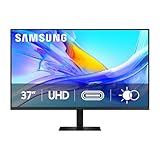 Samsung 37-Inch ViewFinity S8 4K Samsung 37-Inch ViewFinity S8 4K |
|
Check Latest Price |
 ZZA 27-Inch 4K 75Hz Monitor ZZA 27-Inch 4K 75Hz Monitor |
|
Check Latest Price |
 Acer CB272K 27-Inch 4K ZeroFrame Acer CB272K 27-Inch 4K ZeroFrame |
|
Check Latest Price |
1. Dell S2725QS – The Best 4K Monitor for Most Home Offices
Dell 27 Monitor S2725QS, 4K UHD IPS, 120Hz, 5ms, FreeSync Premium
27-inch 4K IPS
350 nits, 1500:1 contrast
120Hz with FreeSync Premium
Height, tilt, swivel, pivot
Pros
- Sharp 4K text rendering at 27 inches
- 120Hz makes scrolling noticeably smoother
- Full height
- tilt
- swivel and pivot stand
- 99% sRGB and 1500:1 contrast
- Built-in speakers usable for calls
Cons
- No USB-C and no built-in USB hub
- No 3.5mm audio out for headphones or external speakers
- Slow pixel response causes ghosting in fast shooters
- HDR performance is basic
This is the monitor we keep coming back to for a reason: it is the only 4K panel in this list that pairs 120Hz with a fully adjustable stand at a mainstream price point. After a month of switching between a spreadsheet, a browser with forty tabs and a video call, the difference between 120Hz and 60Hz showed up most in scrolling and in dragging windows around.
Text rendering is where it really earns its place. At 3840 x 2160 on a 27-inch panel the pixel pitch is fine enough that 150% Windows scaling produces crisp 12-point text with no visible fringing, which is exactly what a day of reading contracts or code requires. Viewing angles are listed at 178 degrees, so a side-on glance from a colleague on a video call does not wash the panel out.
Owner reviews consistently describe it as the most economical route to a sharp 4K 27-inch panel, with good colour out of the box and a clean ash-white chassis that suits a spare room. The ComfortView Plus mode cuts blue light emissions to under 35%, and the matte finish handled the window light in our room without any distracting reflections.
The honest limitation is connectivity. There is no USB-C port, no USB hub and no headphone output, so a MacBook user still needs a separate adapter. Fast-shooting games also expose the slow pixel response with visible ghosting, which is why this is an office pick rather than a gaming one.
Who this monitor suits
Anyone who works primarily on a desktop PC, already owns good peripherals, and wants a 27-inch panel that will not need replacing in two years. The height, swivel and pivot adjustment means you can set the top of the screen at eye level and rotate to portrait for a long document, which is the single most common regret in home office setups with fixed stands.
Who should look elsewhere
If your setup is laptop-only, step up to the ASUS ProArt or the LG 27UP850K-W, both of which carry USB-C power delivery and a hub. Buyers who want deep blacks for evening video should look at the Samsung M7 instead, since this panel’s 1500:1 contrast and basic HDR are not built for that.
2. ASUS ProArt PA279CV – Best for Colour-Accurate Creative Work
ASUS ProArt PA279CV 27 Inch 4K UHD USB-C Professional Monitor
27-inch 4K IPS, 60Hz
Calman Verified, Delta E under 2
USB-C 65W with 4-port USB 3.1 hub
5-year warranty
Pros
- Factory calibrated with Delta E under 2100% sRGB and 100% Rec. 709 coverage
- USB-C 65W plus a 4-port hub for a tidy single-cable setup
- Stand rotates to portrait orientation
- Colour pre-calibration report in the box
- 5-year warranty with registration
Cons
- 60Hz refresh rate only
- Some units arrived with a slight green tint needing correction
- USB-C can need a power cycle to negotiate a signal on some Macs
- ASUS warranty service reported as slow
When your work involves images rather than only text, the ProArt is the reference point in this list. It ships Calman Verified with a Delta E under 2 and a printed calibration report, and the panel covers 100% sRGB and 100% Rec. 709, which is the colour space most web and video work actually uses.
For a laptop user it is close to ideal: one USB-C cable carries video, data and 65W of charging, and the four-port USB 3.1 hub swallows a keyboard, mouse and webcam without a separate dock. The stand tilts, swivels, adjusts in height and pivots to portrait, so it works as a second screen for a long document or a code review.
Hobbyist photographers who bought this report that the picture stays consistent between the screen and a print, which is the entire point of paying for factory calibration. A three-month Adobe Creative Cloud subscription is included in the box, and the matte finish keeps a bright room readable.
The compromises are clear and all minor for office use. It is 60Hz only, and a small number of owners report a slight green tint out of the box that needs either tint correction or full calibration. A few Mac users also hit a USB-C handshake issue that needed a power cycle before the signal appeared.
Who this monitor suits
Photographers, video editors, designers and any MacBook or ultrabook owner who wants one cable for the whole desk. The 5-year warranty with online registration also makes it a calmer long-term buy than the one-year coverage common on cheaper 4K panels.
Who should look elsewhere
Anyone who games seriously should skip past this, because 60Hz and a 5ms panel are not built for fast motion. If your laptop is a larger performance machine that draws more than 65W under load, check the charging section of our buying guide below before committing.
3. LG 27US500-W – The Cleanest-Looking Budget 4K
LG 27US500-W Ultrafine Monitor 27-Inch 4K UHD (3840×2160) HDR10 IPS Borderless Design Reader Mode Flicker Safe Switch App HDMI DisplayPort – White
27-inch 4K IPS, 60Hz
300 cd/m2, 1000:1 contrast
Up to 90% DCI-P3 with HDR10
Tilt-adjustable stand
Pros
- Sharp 4K clarity with 1000:1 contrast
- Up to 90% DCI-P3 coverage with HDR10
- Three-sided borderless design
- Onscreen Control with screen splitting
- Reader Mode and flicker-safe design
Cons
- Stand offers tilt adjustment only with no height or pivot
- Modest 300 cd/m2 brightness
- 60Hz refresh rate
The LG 27US500-W is the cheapest route to a sharp 4K panel that looks good on a desk. The three-sided borderless design keeps the visual footprint small, and the white chassis works nicely in a bright room rather than looking like office equipment.
Reader Mode and the flicker-safe backlight are genuinely useful for long document sessions, and the Onscreen Control software handles screen splitting without extra utilities. Colour is described as accurate out of the box, with up to 90% DCI-P3 coverage and HDR10 support for occasional media work.
Buyers treat this as a straightforward good-value 4K work monitor: sharp, accurate and easy to set up. At 300 cd/m2 it is dimmer than several rivals here, so in a very bright room you will be running it near maximum brightness with a matte finish fighting reflections.
The tilt-only stand is the decision point. Without height or pivot adjustment, this monitor depends on your desk and chair height to land at eye level, and that is exactly the compromise the most common home office regret in forum threads. Pair it with a monitor arm if your desk is deep enough to reach the VESA plate.
Who this monitor suits
Budget buyers who will connect a desktop PC with DisplayPort or HDMI and simply want crisp 4K text. It is also a tidy second display where desk depth or arm mounting is awkward, since the low-power design needs less of both.
Who should look elsewhere
Anyone who docks a laptop or works on a shared stand setup needs height adjustment, which rules this out in favour of the Dell S2725QS or the LG 27UP850K-W. The 300 cd/m2 brightness also makes it a poor fit for a sunlit room without blinds.
4. LG 27UP850K-W – Best Value 4K With 90W USB-C Docking
LG 27UP850K-W 27-inch Ultrafine 4K UHD IPS DisplayHDR 400 Computer Monitor
27-inch 4K IPS, 60Hz
400 cd brightness, 1200:1 contrast
USB-C with up to 90W power delivery
Height, tilt and pivot stand
Pros
- Sharp and accurate 4K image with excellent text rendering
- 90W USB-C docking works well with M-series Macs
- Panel avoids image persistence issues seen on cheaper IPS
- Height
- tilt and pivot stand
- All cables included in the box
Cons
- 60Hz refresh rate
- Built-in speakers are thin and tinny
- Onscreen controls reached via an under-centre button
- White plastic housing feels inexpensive
This is the highest-rated panel in the group, and the reason is that it does the practical things properly. USB-C delivers up to 90W of charging alongside video and data, so a modern laptop runs on a single cable, and the stand adjusts for height, tilt and pivot.
Text quality is the standout for Mac users, who report crisp rendering across M-series machines. Owners also single out the panel for avoiding the image persistence that some cheaper IPS panels show after weeks of a static desktop, which matters a great deal when the same screen sits on a menu bar for eight hours a day.
DisplayHDR 400 support and up to 95% DCI-P3 coverage handle light photo and video work, while 400 cd brightness means it holds up in a daylit room better than the dimmer budget panels. The Switch app splits the screen into up to six sections, useful for a research window beside a document.
Weak points are minor and consistent across reviews. The built-in speakers are thin, the onscreen menu is reached through an under-centre button rather than a joystick, and the white plastic rear housing feels inexpensive next to the metal-bodied rivals.
Who this monitor suits
MacBook, Mac mini and Windows ultrabook owners who want a single-cable desk. At 27 inches it also suits people who find 32 inches too large, and 90W covers most thin-and-light laptops at full speed.
Who should look elsewhere
Larger performance laptops that draw more than 90W under sustained load need a higher wattage, and creative colour work should point at the Calman Verified ASUS ProArt. Fast gaming is out at 60Hz, and the sound is no substitute for a small speaker.
5. INNOCN 27C1U – Best for USB-C Docking on a Budget
INNOCN 27″ 4K USB-C Monitor for Laptop MacBook/Mac mini – 16:9 IPS 3840 x 2160 Display, HDR400, DeltaE<2, DisplayPort, HDMI PC Monitor, 1.07B+ Colors, Built-in Speakers, Adjustable Stand, Black
27-inch 4K IPS, 60Hz
400 nits, 1000:1 contrast
USB-C 65W, HDMI 2.1, DisplayPort
Delta E under 2 with 1.07B colors
Pros
- True 4K IPS with 1.07B colors and Delta E under 2400 nits brightness with DisplayHDR 400
- 65W USB-C plus DisplayPort and HDMI 2.1
- Swivel
- height
- pivot and tilt stand
- Frameless design with 178-degree viewing angles
Cons
- 60Hz refresh rate
- 1000:1 contrast is low for an IPS panel
- Built-in speakers are basic
- Build and support consistency less assured than major brands
The INNOCN 27C1U packs a lot into a small frame. You get a true 3840 x 2160 IPS panel rated at 400 nits, a stated Delta E under 2 with 1.07 billion colours, and a stand that swivels, adjusts in height, pivots 90 degrees and tilts, which is unusual at this end of the market.
Connectivity is the reason to pick it. USB-C with 65W power delivery sits alongside DisplayPort 1.4 and HDMI 2.1, plus a 3.5mm audio out that several rivals in this list lack. For a laptop-only setup that means one cable for video, data and charging.
Owners generally view it as strong value: accurate colour, good brightness and a highly adjustable stand at a modest price. The 178-degree viewing angle keeps the panel readable when a colleague leans into frame during a call, and the matte surface handled a bright window without a mirror effect.
The 1000:1 contrast ratio is on the low side for IPS, which shows in dark scenes and in HDR content, and the built-in speakers are basic at best. Buyers who need a longer support relationship may prefer a panel with a three-year or five-year warranty.
Who this monitor suits
Laptop users on a tighter budget who still want a real USB-C dock, a height-adjustable stand and honest colour. It also works as a second screen for a compact desk because it can pivot to portrait for a long document or a chat window.
Who should look elsewhere
Colour-critical video work and HDR editing want a higher contrast panel or a calibrated screen such as the ASUS ProArt. Buyers who want long-term support certainty should weigh the shorter coverage against the Dell or Acer options below.
6. Samsung M7 32-Inch (M70F) – Best for a Room That Does More Than Work
Samsung 32”M7 (M70F) Series 4K UHD Smart Monitor
32-inch 4K LED, 60Hz
300 cd, 3000:1 contrast
Built-in smart platform with Wi-Fi and Bluetooth
HDMI eARC and USB hub
Pros
- Large 4K panel with sharp text for long documents
- 3000:1 contrast delivers deep blacks
- Built-in streaming apps and Gaming Hub
- Wi-Fi and Bluetooth casting without extra hardware
- HDMI eARC for a soundbar or receiver
Cons
- 60Hz refresh rate
- Limited port selection with no DisplayPort on some sizes
- Close-up picture quality described as mediocre
- Tizen setup and account registration add friction
- Reports of dead pixels and shipping damage
The Samsung M7 makes sense in a spare room that has to do two jobs. As a work display it delivers sharp 4K text across 32 inches, and as a television it runs a built-in smart platform with streaming apps, Samsung TV Plus and Gaming Hub, all without a separate streaming stick.
The 3000:1 contrast ratio is the highest in this roundup and produces genuinely deep blacks, which makes evening viewing far better than a standard 1000:1 IPS panel. Wi-Fi and Bluetooth are built in, so a phone or tablet can cast to it directly, and the HDMI eARC port is a rare and welcome addition for hooking up a soundbar.
Owners mainly value the combination of a big sharp screen, deep contrast and smart features at a mid-range price. The height-adjustable stand helps, and the matte finish keeps a shared room presentable rather than looking like a piece of office kit.
There are real compromises. It is 60Hz, and some sizes have HDMI inputs only with no DisplayPort, which limits multi-monitor chaining. The Tizen setup and account registration add friction out of the box, and quality control is inconsistent, with reports of dead pixels and damage on arrival.
Who this monitor suits
Anyone whose home office doubles as a guest room, media room or occasional gaming space, and who wants one device instead of a monitor plus a smart TV. It is also a good second screen for a dual-monitor setup if the primary is portrait.
Who should look elsewhere
Dedicated desk workers should prioritise pixel density over inches and pick a 27-inch panel instead. Anyone running a desktop PC with a DisplayPort-heavy setup, or a creative professional judging colour, will find the picture quality less impressive up close than the smart features.
7. LG 32UP83AK-W – Best 32-Inch 4K for Multitasking
LG 32UP83AK-W 32-inch Ultrafine 4K UHD (3840 x 2160) IPS Computer Monitor, 60Hz, HDR10, Built-in Speaker, Reader Mode, HDMI, DisplayPort, USB Type-C 60W PD, Tilt/Height/Pivot Adjustable Stand, White
31.5-inch 4K IPS, 60Hz
350 cd, 1000:1 contrast
USB Type-C with 60W PD
Height, tilt and pivot stand
Pros
- Large 31.5-inch 4K IPS with consistent brightness at wide angles
- USB-C single-cable connection with 60W charging
- HDR10 with up to 95% DCI-P3 coverage
- Tilt
- height and pivot adjustment
- Built-in speakers and Reader Mode
Cons
- 60Hz refresh rate
- 1000:1 contrast is modest for video
- 60W USB-C is below what larger laptops need
- Fewer ports than some competing 4K monitors
This is the most conventional answer to the 32-inch question. At 31.5 inches and 3840 x 2160, running 150% scaling gives an effective 2560 x 1440 workspace, which is the balance most home office forum users describe as ideal: enough room for two documents side by side, with text sharper than a native 1440p panel.
Consistent brightness from the wide viewing angles matters when a monitor sits in a corner of a bright room. USB-C handles video, data and up to 60W of charging in one cable, and the stand adjusts for tilt, height and pivot so you can rotate to portrait for a code review.
Satisfaction centres on the large sharp canvas, accurate colour and the convenience of USB-C docking. HDR10 with up to 95% DCI-P3 handles media work, and Reader Mode plus the built-in speaker make it a comfortable all-day work screen.
The 60W USB-C limit is the main thing to check against your laptop. A 13-inch ultrabook charges comfortably at that level; a 16-inch performance machine under sustained load may not. The 1000:1 contrast is also modest for video, so this is a work monitor that tolerates movies rather than one built for them.
Who this monitor suits
Spreadsheet-heavy users, project managers and analysts who want two full documents visible at once without a second screen. It is also a strong choice as a single large display for anyone who found 27 inches too cramped at 150% scaling.
Who should look elsewhere
Users with a shallow desk should stay at 27 inches, because a 32-inch panel needs real desk depth to sit at the right viewing distance. Anyone needing deep blacks for film should look at the Samsung M7, and larger laptops need more than 60W.
8. msi PRO MP273U – Best Budget 4K for Colour-Critical Work
msi PRO MP273U, IPS 3840 x 2160 (UHD) Computer Monitor, 4K, 60 Hz, Adaptive-Synch, HDMI, DisplayPort, 4ms (GTG), Black
27-inch 4K IPS, 60Hz
4ms GTG response, FreeSync
95% Adobe RGB and 99% DCI-P3
TUV certified flicker free
Pros
- Affordable true 4K IPS with sharp detail for photo and design work
- 95% Adobe RGB and 99% DCI-P3 with Delta E of 2 or under
- TUV Rheinland flicker free and low blue light certification
- HDR Ready support
- 3-year manufacturer warranty
Cons
- 60Hz refresh rate only
- No USB-C connectivity or integrated hub
- Limited port selection with only HDMI and DisplayPort
- Stand offers limited adjustment
The msi PRO MP273U is unusual at this price because of its stated gamut: 95% Adobe RGB and 99% DCI-P3 with a Delta E of 2 or under. That puts it in the conversation with panels costing far more when any visual work is part of your day.
It is also TÜV Rheinland certified flicker free with low blue light filtering, which is the specification that matters for an eight-hour text day, and the bundled Eye-Q Check tool walks you through a vision assessment. A 3-year manufacturer warranty is longer than most rivals at this level.
Reviewers see this as a budget 4K workhorse: sharp 4K text, colour accuracy suited to photo and design work, and eye care certifications for long sessions. The 4ms GTG response and FreeSync support smooth out scrolling and light motion.
What it does not do is dock. There is no USB-C and no integrated hub, only HDMI and DisplayPort, so a laptop user still needs an adapter. The stand offers limited adjustment, and the 4.0 average reflects a real compromise between feature set and build quality.
Who this monitor suits
Photographers, illustrators and students doing colour-aware work without a large budget, plus anyone who wants long certified eye comfort. The three-year warranty also makes it a calmer choice for a machine that will run daily.
Who should look elsewhere
Laptop users needing single-cable charging should choose a panel with USB-C, such as the Acer CB272K or the LG 27UP850K-W. Anyone needing an adjustable stand for an eight-hour day should spend more on a panel with height and pivot control.
9. Dell P3225QE – Best for a Deep Desk and a Serious Dock
Dell P3225QE 31.5-Inch 16:9 100Hz USB-C IPS LED Monitor (Gray)
31.5-inch 4K IPS, 100Hz
1500:1 contrast, 99% sRGB
USB-C 90W with RJ45 Ethernet
Fully adjustable stand
Pros
- Large 31.5-inch 4K IPS with sharp clear detail
- 100Hz refresh and 5ms GTG give smoother motion than 60Hz panels
- USB-C docking with 90W plus built-in RJ45 Ethernet
- Full tilt
- swivel
- pivot and height adjustment
- Narrow bezels suit multi-monitor setups
Cons
- Costs more than most 27-inch 4K options
- No built-in speakers listed
- Warranty length not specified in the listing
The P3225QE is the one to buy when your desk is deep enough to take 31.5 inches and your laptop needs more than a basic charge. USB-C provides up to 90W alongside data, and the built-in RJ45 Ethernet port turns a single cable into a full wired workstation, which matters for hybrid work.
At 100Hz with a 5ms GTG response it moves more smoothly than the 60Hz panels that dominate this list, and scrolling long documents feels noticeably more settled. The stand offers full tilt, swivel, pivot and height adjustment, and the narrow bezels make a two-monitor setup tidy.
Owners highlight the combination of a big sharp canvas, the rarer 100Hz refresh rate and a strong USB-C dock with 90W charging and Ethernet. The matte finish and ComfortView Plus mode keep it comfortable in a daylit room.
There are no built-in speakers listed, so plan on external audio or a headset. It also sits above most 27-inch 4K options in price, and the warranty length is not specified, so check coverage at purchase rather than assuming a three-year standard.
Who this monitor suits
Professional home offices with a deep desk, a laptop that needs serious charging, and a need for wired networking without a separate dock. The 100Hz panel is also a quiet upgrade for anyone who finds 60Hz scrolling tiring.
Who should look elsewhere
A small desk or a mixed laptop-and-desktop setup with shallow depth should stay at 27 inches. Anyone who needs sound from the monitor or wants a longer warranty in writing should weigh the LG 32UP83AK-W instead.
10. Samsung ViewFinity S8 37-Inch (S80UD) – Biggest Usable 4K Canvas
Samsung 37” ViewFinity S8 (S80UD) Series 4K UHD High-Resolution Monitor
37-inch 4K LCD, 60Hz
350 cd, 3000:1 contrast
USB-C 90W with built-in LAN
Built-in KVM with split screen
Pros
- 37-inch 4K text stays comfortable at arm's length
- Huge workspace for documents
- charts and timelines
- Tool-free stand with height
- tilt and swivel
- 90W USB-C with data plus a built-in LAN port
- TUV certified eye care with flicker and blue light protection
Cons
- Ships in Eco picture mode which makes text blurry until changed
- No built-in speakers
- KVM limited to picture-in-picture or split screen
- Built-in Ethernet adapter is slow
- Colour accuracy is poor for design work
Thirty-seven inches is where 4K finally starts to feel like a different class of screen. Because the panel is physically larger, 4K text stays comfortable at arm’s length rather than forcing you closer, which is the argument productivity-focused owners make repeatedly. You get five inches more diagonal than a 32-inch display without moving into 40-plus-inch territory.
USB-C delivers up to 90W with data transfer, and there is a built-in LAN port for wired networking. A built-in KVM supports split screen, picture-in-picture and picture-by-picture, so a laptop and desktop can share the screen even though it is not true full-screen source switching. The stand has a tool-free setup with height, tilt and swivel adjustment.
Reviewers love the size as the sweet spot where 4K text is genuinely readable, and report crisp output with simple assembly. TUV-certified flicker reduction and blue light protection make it a reasonable candidate for a full text workday.
Two things catch people out. The monitor arrives in Eco picture mode, which makes text look blurry until you switch to Graphic, and the built-in Ethernet adapter is slow, well below gigabit speeds. Colour accuracy is also weak for design and colour-critical work, so this is a productivity screen rather than a creative one.
Who this monitor suits
Users with a large desk who work across several documents, charts, development environments or video timelines at once. It suits analysts, editors and anyone who found 32 inches still too small and does not want to commit to a 43-inch panel.
Who should look elsewhere
Anyone with a shallow desk or a normal viewing distance will find 37 inches excessive and end up turning their head. Colour-critical work, wired networking at full speed, and anyone needing built-in audio should look at the smaller, better-equipped alternatives.
11. ZZA 27-Inch 4K 75Hz – Best as a Second Screen
ZZA 27 inch 4K UHD Monitor,75Hz Refresh Rate,HDR10,HDMI 2.0×2/DP 1.2×2,Compatible with Wall Mounting,Ideal for Business & Office Work
27-inch 4K LED, 75Hz
300 cd, 1000:1 contrast
2x HDMI 2.0 and 2x DisplayPort 1.2
HDR10 with FreeSync
Pros
- Sharp 4K picture at an entry-level price
- 75Hz refresh is smoother than 60Hz for scrolling
- Good port count with two HDMI and two DisplayPort inputs
- HDR10 support and a blue light filter
- VESA 75x75 wall mounting and tilt adjustment
Cons
- On-screen menu buttons and navigation are clunky
- Needs properly rated 4K HDMI cables
- Some reports of dead panels or a black line defect
- Tilt-only stand with no height or pivot
- Poor fit and usability reported by Mac users
The ZZA is the one to add as a second display when your laptop screen is already carrying a task. At 27 inches and 4K it matches the primary panel in density, so a document on one screen and a browser on the other line up pixel for pixel instead of looking mismatched.
Two HDMI 2.0 and two DisplayPort 1.2 inputs plus a 3.5mm headphone output is generous port count for a secondary panel, and 75Hz is smoother than the standard 60Hz when you scroll long documents. VESA 75×75 wall mounting keeps it out of desk space entirely.
Value buyers like the sharp image, useful port count and 75Hz smoothness at a budget level. The blue light filter helps with long sessions, and the matte finish works fine in a normal room.
There are trade-offs. The on-screen menu buttons are awkward, and getting 4K over HDMI requires properly rated 4K or 8K cables, which are not always in the box. There are reports of dead panels and a black line defect on arrival, and Mac users report a poor fit with scaling and layout.
Who this monitor suits
Existing desk setups that need a matching second screen for research, chat or monitoring, and buyers who want a cheap additional panel mounted on a wall or arm. The matching density keeps a dual-screen layout visually consistent.
Who should look elsewhere
A primary display should not be chosen on port count alone. If this is your only screen, buy one of the adjustable-stand panels above, and Mac users should be cautious given the reported scaling and usability issues.
12. Acer CB272K bmiprux – Best High-Contrast 4K on a Budget
Acer 27in 4K 3840×2160 IPS 60Hz Office Monitor CB272K bmiprux
27-inch 4K LCD, 60Hz
350 nits, 2000:1 contrast
USB 3.1 Type-C with 90W docking
3-year parts and labor warranty
Pros
- Sharp detailed 4K image with 2000:1 contrast
- 350-nit brightness with near-perfect colour for the price
- ZeroFrame design gives maximum edge-to-edge visibility
- USB-C with 90W power delivery for a single-cable laptop setup
- FreeSync plus Eyesafe blue light protection
- 3-year parts and labor warranty
Cons
- Slow startup compared with earlier Acer monitors
- Occasionally drops USB-C sync with some Macs requiring a power cycle
- USB-C power delivery cuts off when the monitor sleeps
- Heavy and bulky unit
- Some units reported arriving dead or faulty
The Acer CB272K stands out for a 2000:1 contrast ratio at a modest price, which is double what most 27-inch 4K IPS panels manage. In practice that means deeper blacks and less washed-out dark documents, a real difference when you are reading long contracts in a dim evening.
USB-C provides 90W of power delivery with data transfer for a single-cable laptop setup, and the ZeroFrame design maximises edge-to-edge visibility. Brightness is 350 nits, colour covers 99% sRGB, and a three-year parts and labor warranty is longer than most rivals at this price.
Owners consider it a strong value 4K office monitor, praising brightness, contrast and colour accuracy, and some buyers have ordered two for a workstation. The Eyesafe blue light protection and matte finish make long sessions comfortable.
The rough edges are practical rather than visual. Startup is slower than earlier Acer monitors, the unit is heavy and bulky, and some Mac users hit USB-C sync drops that need a power cycle. Power delivery also cuts off when the monitor sleeps, which can put a laptop to sleep in turn.
Who this monitor suits
Office and home users who want 90W USB-C docking and above-average contrast without moving to a premium brand. The three-year warranty and ZeroFrame edge-to-edge design also suit a small desk where screen area counts.
Who should look elsewhere
MacBook owners should account for the reported USB-C sync behaviour, and anyone wanting a height-adjustable stand or pivot should look at the Dell S2725QS or LG 27UP850K-W. Check the panel carefully on arrival given reports of dead units.
How to Choose a 4K Monitor for a Home Office in 2026
Is 4K overkill for a 27-inch monitor? No, and 4K is the minimum at 32 inches
Not at 27 inches. A 27-inch 4K panel gives roughly 163 pixels per inch, which is dense enough that 150% display scaling makes text look larger while individual pixels stay invisible. The moment you move up to 32 inches, 4K stops being optional: without it, scaling gets coarse and you lose the text clarity that makes 4K worth buying.
The other side of the argument is real too. If you spend your day reading email and browser windows at 100% scaling, a good 1440p panel at 27 inches is genuinely enough, and 4K is money you could spend on a monitor arm or a better chair instead. The honest answer is that 4K pays for itself when you handle dense text, wide spreadsheets or multiple windows at once.
Is a 4K monitor worth it for office work?
Worth it if your work is document, spreadsheet or code heavy, because the extra pixel density means more rows and columns of a spreadsheet visible at the same readable size. Worth it if you want a laptop to run one cable. Less worth it if you mainly browse and take video calls, where a 1440p panel will feel nearly identical.
One caution for all-day use: OLED panels give perfect blacks and very high contrast, but a monitor that shows a static desktop UI for eight hours a day is exactly the use case where burn-in risk matters. For a work display that stays on constantly, an IPS panel is the safer choice, and every IPS model in this roundup is rated for flicker-free operation.
Windows and macOS scaling settings that actually work
On Windows, open Settings, then System, then Display, and set the scale. For a 27-inch 4K panel, 150% is the right starting point; drop to 125% if you want more screen area, and 175% if text still feels small. On a 32-inch 4K panel, 150% gives an effective 2560 x 1440 workspace, which is the balance most home office users settle on.
On macOS, a 4K display defaults to a scaled mode that looks like 2560 x 1440 while still rendering at full 4K internally. On System Settings, Displays, choose from the Scaled list: the 2560 x 1440 option is the one most 32-inch users want, while 27-inch owners often prefer the next step up for text. Leave the option titled Looks like 1920 x 1080 alone; it defeats the purpose of the panel.
USB-C power delivery wattage by laptop class
Match the wattage to the machine, not the monitor. Light ultrabooks and MacBook Air models draw well under 65W, so a 65W port charges them at full speed. Mainstream 14-inch performance laptops and most 15-inch machines want 90W. Larger 16-inch machines under sustained load need 140W, and no monitor in this roundup reaches that figure.
Getting it wrong is the most common USB-C complaint in home office threads: a 65W port feeding a laptop that draws 85W will charge slowly, or drain while plugged in under heavy work. In this roundup, 90W appears on the LG 27UP850K-W, the Dell P3225QE and the Samsung ViewFinity S8, while the ASUS ProArt, INNOCN and LG 32UP83AK-W provide 60W to 65W.
Screen size against desk depth and viewing distance
Sit between 20 and 30 inches from a 27-inch panel, 24 to 34 inches from a 32-inch, and closer to 40 inches for a 37-inch. If your arm’s length comfortably covers the whole panel at eye height, the size works. If you have to turn your head to read the far edge, it is too big for the desk.
Desk depth follows the same rule. A 27-inch panel needs around 60cm of depth, a 32-inch around 70cm, and a 37-inch around 80cm. Smaller apartment desks should stay at 27 inches, and if you have a deep desk, the 31.5-inch and 37-inch options open up far more simultaneous content.
Panel technology, ergonomics and eye comfort
IPS is the right default for an office: wide viewing angles, consistent colour, no burn-in risk on a static desktop, and matte anti-glare coatings that survive a room with windows. VA gives deeper blacks but has slower pixel response, and OLED and mini-LED deliver better contrast at the cost of a higher price and, for OLED, long-term burn-in risk with static UI.
Stand adjustment is where most home office buyers regret a choice later. Look for at least height adjustment, tilt and swivel, plus pivot to portrait if you read long documents. All of them should be VESA mountable, typically 100×100 for a 27-inch panel or 75×75 on smaller budget models, so you can add a monitor arm later. Pair the screen with good lighting rather than fighting glare with brightness; our picks for the best desk lamps for home offices will help with that.
Finally, read the warranty and dead pixel policy before you buy. A one-year warranty is common on budget panels, while the ASUS ProArt carries five years with registration and the Acer and Samsung models offer three. For a screen you will stare at for eight hours a day for several years, longer coverage is worth checking.
Frequently Asked Questions
What is the best 4K monitor for office use?
A 27-inch 4K IPS panel with a height-adjustable stand is the best all-round choice for office use, because it gives about 163 pixels per inch for crisp text at 150% Windows scaling. If your setup is laptop-only, choose a 4K IPS with USB-C power delivery of at least 65W so one cable handles video, data and charging.
Is 4K overkill for a 27 inch monitor?
No. A 27-inch 4K panel is dense enough that 150% display scaling makes text larger while pixels stay invisible, so 4K is the minimum sensible resolution at that size. Where 4K becomes optional rather than essential is 1440p on a 27-inch panel for general browsing and video calls.
Should I scale a 27-inch 4K monitor to 125% or 150%?
Start at 150% on a 27-inch 4K monitor. Drop to 125% if you want more simultaneous windows on screen, and raise it to 175% if text still reads small. On a 32-inch 4K panel, 150% gives an effective 2560 x 1440 workspace, which most home office users find ideal.
How much USB-C power delivery do I need for a laptop?
Light ultrabooks need around 65W, mainstream 14-inch and 15-inch performance laptops want 90W, and large 16-inch machines under sustained load need 140W. A port rated below what your laptop draws will charge slowly or drain the battery while plugged in.
Is 4K better than 1440p for spreadsheets?
Yes. 4K shows more rows and columns of a spreadsheet at the same readable text size, which is why spreadsheet-heavy workers tend to choose 4K. The gain is smaller for email and general browsing, where a good 1440p 27-inch panel is close enough.
What is the best 32-inch 4K monitor?
A 32-inch 4K IPS panel with a height and pivot adjustable stand is the safest pick, ideally with USB-C power delivery for laptop users. Set scaling to 150% for an effective 2560 x 1440 workspace, and make sure your desk has at least 70cm of depth so the whole panel fits at arm’s length.
The Verdict for 2026
For most people building a home office this year, the best 4K monitors for home offices come down to three picks. The Dell S2725QS is the safest all-rounder, with 120Hz motion, a fully adjustable stand and the largest owner base in this roundup. The ASUS ProArt PA279CV is the one to buy if any visual work crosses your desk. The LG 27UP850K-W is the value winner, with 90W USB-C and a stand you can actually adjust.
If you only buy one, take the Dell S2725QS unless your setup is laptop-only, in which case move to the LG 27UP850K-W. Use the 4K monitor checklist above to confirm scaling, stand range and USB-C wattage before you order, and pair it with one of our home office laminator picks to finish the workspace.