
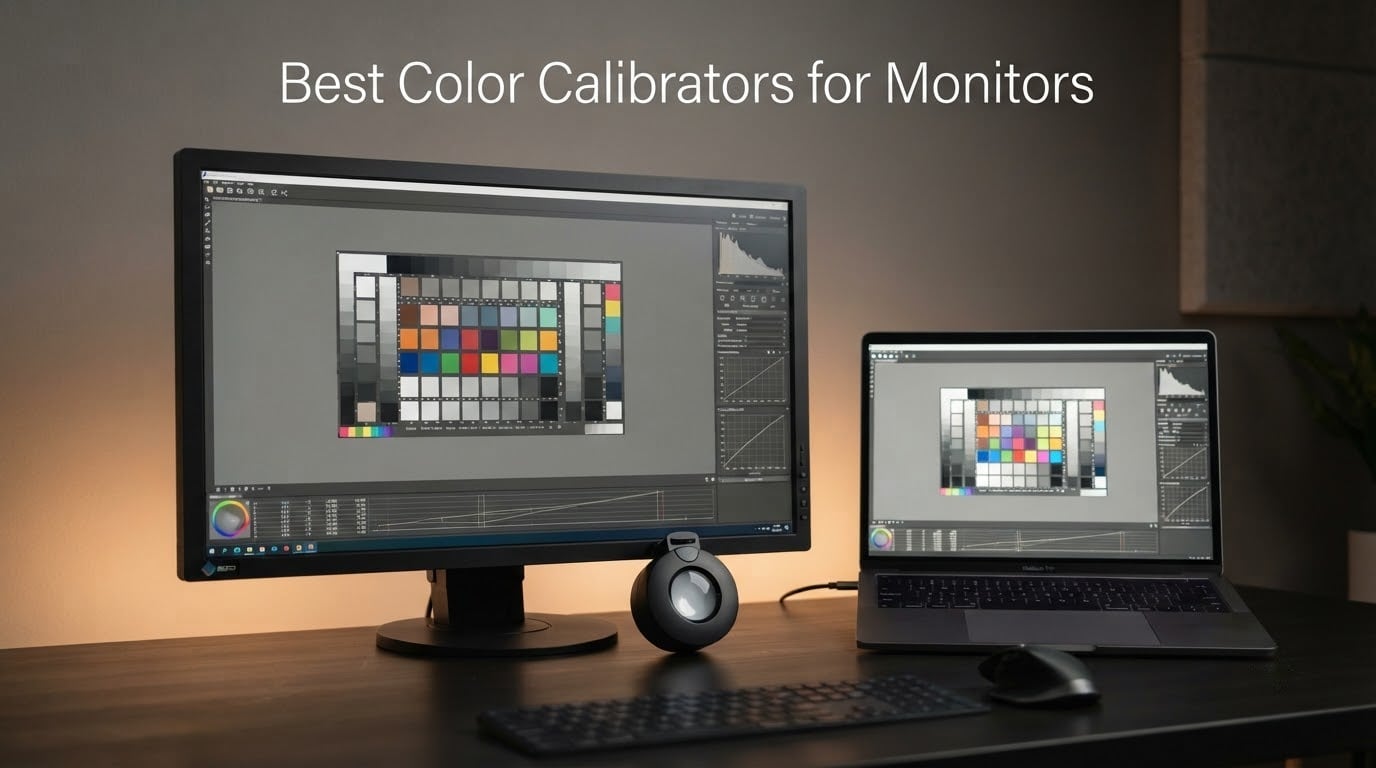
A monitor colorimeter is a small measuring device, usually USB-C, that clips over your screen and reads the colours the display is actually emitting. Software then builds a custom ICC profile from those readings and corrects your display’s colour, brightness and contrast to a known reference. If you want the short answer to the best color calibrators for monitors, the Datacolor Spyder X Pro leads this list for most people, with the Calibrite ColorChecker Display as the calmer alternative for photographers who never want to open a settings dialog they do not understand.
Why bother when the monitor shipped with a factory calibration? Because factory profiles are measured under ideal lab conditions, then your panel drifts with heat, age and the ambient light in your room. Calibration is what keeps the photo you edited matching what other people see on their screens and what comes out of your printer. Our team spent weeks comparing the six devices below on accuracy claims, luminance ceiling, bundled software and how much hand-holding each one demands, and the honest answer is that the hardware matters far less than the software you run it with.
That last point surprises people. Across thousands of owner reviews of the Spyder line, the recurring complaint is never the sensor, it is the bundled Windows utility failing to reload an ICC profile after sleep or a reboot. Experienced users repeatedly move the same hardware to the free DisplayCAL utility and report better shadow control as a result, which is the same pattern that shows up on the enthusiast forums we checked. If your work depends on accurate colour, start with the picks below and treat the software choice as a separate decision.
Whether you are grading video, retouching stills, matching a laptop screen to a desktop panel or simply tired of a display that looks different from everyone else’s, the six tools here cover the realistic options. Pair them with one of our camera monitors for filmmaking picks if you are building an on-set kit, and remember that a probe only tells the truth if the room around it is quiet.
Table of Contents
- Top 3 Picks for the Best Color Calibrators for Monitors in 2026
- Best Color Calibrators for Monitors at a Glance in 2026
- How We Chose These Monitor Calibration Tools
- Six Monitor Colorimeter Reviews
- 1. Datacolor Spyder X Pro – The Best Color Calibrator for Monitors Overall
- 2. Datacolor Spyder5PRO – Budget Pick Monitor Colorimeter
- 3. Calibrite ColorChecker Display – Best Value for Photographers
- 4. Datacolor SpyderPro – Best for OLED and Mini LED Panels
- 5. Calibrite Display Plus HL – Best for HDR and Super Bright Panels
- 6. Calibrite ColorChecker Display Pro – Best for Projector and Venue Work
- How to Choose a Monitor Colorimeter Without Regret
- What a monitor colorimeter actually does
- Colorimeter vs spectrophotometer: which one do you need?
- What Delta E numbers really mean
- Spyder or Calibrite and X-Rite: the honest comparison
- Free software vs the bundled app
- Laptop screens and matching two monitors
- How to calibrate a monitor in about 15 minutes
- Troubleshooting when calibration misbehaves
- Frequently Asked Questions
- Which Colorimeter Should You Buy in 2026?
Top 3 Picks for the Best Color Calibrators for Monitors in 2026

Datacolor Spyder X Pro
- Lens-based color engine
- Room-light monitoring
- 12 calibration targets
- Multi-display profile switching
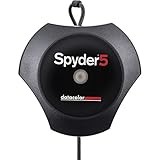
Datacolor Spyder5PRO
- About five minutes per display
- Room light monitoring
- Display Analysis
- Compact 4.7 ounce puck
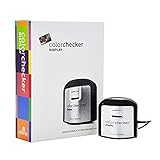
Calibrite ColorChecker Display
- High repeatability
- Rotatable diffuser arm
- Tripod mount
- ccStudio software
Best Color Calibrators for Monitors at a Glance in 2026
Six devices, one job. The table below is the fast version: what each tool measures, how far up the brightness range it can read, and the kind of work it suits. Everything after it is the slower version, with the trade-offs spelled out.
| Product | Specs | Action |
|---|---|---|
| Datacolor Spyder X Pro |
|
Check Latest Price |
| Datacolor Spyder5PRO |
|
Check Latest Price |
| Calibrite ColorChecker Display |
|
Check Latest Price |
 Datacolor SpyderPro Datacolor SpyderPro |
|
Check Latest Price |
 Calibrite Display Plus HL Calibrite Display Plus HL |
|
Check Latest Price |
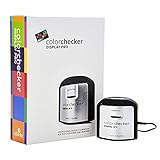 Calibrite ColorChecker Display Pro Calibrite ColorChecker Display Pro |
|
Check Latest Price |
How We Chose These Monitor Calibration Tools
We did not run a colour lab, and we would rather say that plainly than invent a chart. What we did was read the accumulated owner feedback on every one of these devices, compare the published specifications against what the hardware has to do in the real world, and weigh the software that ships with each unit against the free alternatives most experienced users actually run.
Five criteria decided the order. First, measurement honesty: does the sensor read the full brightness range of the panel you own, or does it clip above its ceiling. Second, repeatability, because a device that gives different numbers twice in a row is worse than no device. Third, the bundled software, since that is what most people will actually use. Fourth, the breadth of supported panel types, from standard LED to OLED and mini LED. Fifth, and we weight this heavily, how many owners report that the result held up weeks later.
One more note on methodology. Several of the most useful signals in this niche come from practitioners rather than reviewers, and we have leaned on that. A question we kept seeing on pro-video forums was whether a mid-range colorimeter driven by the free DisplayCAL utility beats an expensive one with a clunky app, and the answer was consistently yes. We have flagged where that matters in each review rather than pretending the bundled software is always the deciding factor.
Six Monitor Colorimeter Reviews
1. Datacolor Spyder X Pro – The Best Color Calibrator for Monitors Overall
Datacolor Spyder X Pro – Monitor Calibrator. Color Calibration Tool for Monitor Display. Ensures accurate color for photographic images. Ideal for first-time users
Lens-based color engine
Room-light monitoring
12 calibration targets
Desktop and laptop
Pros
- Strong multi-monitor accuracy
- Fast guided wizard
- Room-light monitoring
- Automatic profile switching
- Two minute calibration
Cons
- Bundled app lags third-party tools
- Directional ambient sensor
- Profile reload issues after sleep
This is the device we keep reaching for. The lens-based color engine is the reason it has held the highest average rating in the group across more than five thousand reviews, and in practice the difference shows most on a multi-monitor desk where two panels rarely agree out of the box. Room-light monitoring picks a brightness target that suits the room you are actually in, which is something most cheaper pucks simply do not attempt.
The workflow is the best color calibrator experience here for a first-time buyer. Twelve predefined calibration targets sit in a single-click wizard, and a full pass takes a minute or two per display, so the cost of recalibrating is low enough that you will actually do it. SpyderProof then shows you before and after using your own images, which converts an abstract accuracy number into something you can see in a second.
The weakness is the same one that shadows the whole Spyder family. Owners report ICC profiles failing to auto-load on Windows after sleep or a reboot, and a meaningful minority respond by switching to the free DisplayCAL utility for deeper control, where they often find better shadow handling. Another recurring detail: the ambient light sensor is directional, so how you angle the puck changes the reading it takes.
There is also a physical limit worth stating plainly. Calibration improves the profile but cannot conjure gamut your panel does not physically have, which is why an sRGB monitor will never be talked into wide-gamut colour. If you need that, the fix is hardware, not a better probe.
Who the Spyder X Pro suits
It suits photographers, editors and web designers who work across two or three displays and want accurate results without a tutorial. The automatic profile switching keeps a laptop panel and a desktop panel visually consistent as you move windows between them, which is the quiet problem this device solves better than any other here.
It also suits anyone who would rather not read a manual. Every target is labelled in plain language, the wizard explains each step, and the whole thing finishes before your coffee cools.
Who should skip the Spyder X Pro
Skip it if your workflow depends on the deepest gamma and black point control available, because that is exactly the territory third-party utilities cover better. Owners chasing fine shadow detail frequently end up outside the bundled app within weeks, and the same pattern shows up repeatedly in enthusiast forum threads.
Skip it if you need to read very high luminance panels for HDR work. The ceiling here is modest compared with the dedicated high-luminance sensors later in this list, and on a mini LED or an Apple XDR display the reading simply runs out of headroom.
2. Datacolor Spyder5PRO – Budget Pick Monitor Colorimeter
Datacolor Spyder5PRO – Designed for Serious Photographers and Designers (S5P100)
About five minutes per display
Room light monitoring
Display Analysis
4.7 ounces
Pros
- Compact and solidly built
- Fast per-display calibration
- Room light monitoring
- Display Analysis for screen comparison
- Consistent results across Datacolor generations
Cons
- SpyderUtility can crash or fail after sleep
- Weak multi-user support
- Short USB cable
The hardware here is the reason this is the value pick. Owners almost universally describe it as accurate, well made and quick, and the little lens cap that doubles as a counterweight when the puck hangs on the display is the kind of detail that separates a considered tool from a generic puck.
At roughly five minutes per screen, a full calibration is quick enough that recalibrating monthly stops feeling like a chore. Display Analysis also lets you compare several laptop and desktop panels side by side before you commit to buying a new one, which is a genuinely useful feature when you are deciding what to upgrade next.
Where the reviews split is software. Multiple long-form write-ups document SpyderUtility profile-loading failures on multi-monitor Windows 10 setups, and again a striking number of owners independently migrated to the free DisplayCAL and Argyll utilities, reporting better gamma and shadow control afterwards. One review documents a complete failure to change gamma on a high-end laptop. Non-Windows users report none of this, which is worth weighing if you are on a Mac.
Two smaller annoyances: multi-user support is essentially absent, so the installer and profiler have to be run per user account, and the bundled USB cable can be too short to reach a second monitor.
Who the Spyder5PRO suits
It suits photographers on a modest budget who mainly work in sRGB and want their prints to match their screen. For that job the sensor is more than capable, and the multi-year consistency owners report across Datacolor generations is reassuring.
It also suits anyone with a mixed laptop and desktop setup, because the software handles profile changes across machines without fuss once it is running properly.
Who should skip the Spyder5PRO
Skip it on a shared or managed workstation. With no meaningful multi-user support, an IT department will end up deploying it by hand on every account, and that friction is why some facilities skip this generation entirely.
Skip it if you need to read modern wide-gamut and OLED panels at full brightness, or if you are on Windows and have already fought with a profile loader that refuses to apply after a sleep cycle. The hardware is not the problem, but the daily experience will be.
3. Calibrite ColorChecker Display – Best Value for Photographers
CALIBRITE ColorChecker Display (CCDIS)
High repeatability
Rotatable diffuser arm
Integrated tripod mount
USB connectivity
Pros
- Very portable
- Repeatable results
- Full-screen patches reduce placement errors
- Doubles as projector stand
- Works on Linux
Cons
- ccStudio installation friction on Windows 11
- No USB-C adapter in the box
- Weak workflow guidance
This is the calm option. The optical design is built for repeatability on the same display and consistency across different display types, and several owners note that results are hard to tell apart from the pricier versions in the same line for anything short of elite reference work. That is the value argument in one sentence.
The physical design is unusually thoughtful. The rotatable diffuser arm doubles as a table-top projector profiling stand, an ambient light meter and a cover for the instrument optics, and the integrated tripod mount handles projectors in larger venues. ccStudio also drives full-screen colour patches, which means precise placement of the puck matters far less than with tools that rely on small patches.
The complaints cluster on software, not hardware. Installation can be slow and ccStudio can fail to launch on Windows 11 without resetting Microsoft Store settings, some users hit recognition and freezing issues in the bundled app, and calibration takes about six minutes, a little longer than the higher-tier models. Experienced owners often pair this puck with the free DisplayCAL utility instead.
One practical warning: it ships with a captive full-size USB cable and no USB-C adapter, so it is not usable out of the box on a modern MacBook despite the compatibility claim. Budget for a small adapter before you unbox it.
Who the ColorChecker Display suits
It suits photographers who print their work and want the screen to agree with the paper. The accuracy is there, the workflow is short, and the software stays out of your way once it is running.
It also suits anyone who profiles projectors or works in a room where the display moves around a lot, because the diffuser arm and tripod mount turn one device into several.
Who should skip the ColorChecker Display
Skip it if you need guidance on what to calibrate for a given application. Several users note ccStudio gives you controls without telling you whether a photo-proofing target makes more sense than a general one, and that ambiguity is why a more opinionated tool suits some people better.
Skip it if you are on a modern USB-C-only laptop and refuse to carry an adapter, or if you are on Windows 11 and cannot afford an afternoon of troubleshooting. It has the highest one-star share in this group, and installation friction is the reason.
4. Datacolor SpyderPro – Best for OLED and Mini LED Panels
datacolor SpyderPro Monitor Calibrator & Screen Color Calibration Tool
Wide LED,OLED and Mini LED backlights
Integrated USB-C
Windows 10/11 and macOS
Pros
- Explicit OLED and Mini LED support
- USB-C built in
- Unlimited display support
- Automatic room light switching
- Multilingual software
Cons
- Bundled software still draws complaints
- Advanced mapping adds complexity
- Ratings spread suggests maturing firmware
This is the current-generation Spyder, and the reason it exists is panel support. Wide LED, standard LED, OLED and mini LED backlights are all named explicitly, which closes the gap that made earlier Spyder models struggle on the high-end displays people actually want to calibrate.
The integrated USB-C cable connects directly to modern laptops without an adapter, which removes the single most common complaint about older pucks in this category. It supports an unlimited number of displays with automatic profile and room-light switching, and the software runs on Windows 10 and 11 plus macOS, in several languages.
Control is deep when you want it. Unlimited gamma, white point and brightness settings, gamma curve adjustment for finer shadow detail, projector calibration, and Display Analysis for screen quality assessment are all in the box. The catch is that these extras add real software complexity, and the current generation of the app still attracts complaints from people who prefer deeper third-party control.
Owners rate it as a solid, capable tool for modern panels, with the residual criticism aimed at the bundled application rather than the sensor. The wide spread across ratings suggests firmware and software are still maturing for some users, so expect a little more friction than the previous generation.
Who the SpyderPro suits
It suits owners of OLED and mini LED panels who have been told their existing probe cannot read the highlights properly. Explicit backlight support is the headline here, and USB-C means there is no adapter to lose.
It also suits anyone running several displays across machines, because unlimited display support with automatic switching removes the most tedious part of multi-monitor colour work.
Who should skip the SpyderPro
Skip it if you want a five-minute setup with no menus to learn. The advanced mapping and analysis tools are a real depth advantage for some people and a genuine obstacle for others, and the review spread suggests people fall into both camps.
Skip it if you need to read the very top of the brightness range for HDR mastering. Supporting an OLED backlight and measuring ten thousand nits are different problems, and the sensor that does the second one appears next.
5. Calibrite Display Plus HL – Best for HDR and Super Bright Panels
Calibrite Display Plus HL Monitor Calibration Colorimeter for Mini LED OLED and Super Bright Displays, Advanced HL Sensor Measures Up to 10000 Nits, PROFILER Software, USB C with Adapter
Measures up to 10000 nits
Rec.709 and BT.1886
USB-C with USB-A adapter
PROFILER software
Pros
- Very high luminance ceiling
- Handles mini LED OLED and LCD
- PROFILER Basic and Advanced modes
- Validation and uniformity tools
- Multi-monitor matched colour
Cons
- Highest cost in this group
- Lowest average rating here
- Advanced options add a learning curve
This is the only tool here that can read the top of the range a modern HDR display actually produces. The advanced high-luminance sensor measures up to ten thousand nits, which puts it in a different class from everything above it for HDR grading, mini LED panels and Apple XDR displays.
Calibrite PROFILER offers Basic and Advanced modes, so beginners get a guided path while specialists get full control of white point, luminance, contrast ratio and gamma, with custom patch sets and shared presets for team workflows. It supports Rec.709 with BT.1886 tone curve options for Rec.2020 pipelines, and multi-monitor profiling for matched colour across an editing desk.
What makes this credible as a professional tool is the validation set: Quick Check, Profile Validation, Uniformity Check and Profiler Manager. Those exist so you can prove the calibration held, which is exactly the evidence pro-video practitioners ask for and almost never find in a consumer roundup.
Reviews here are genuinely split, and you should know that before you commit. It carries the lowest average rating in this group and a noticeably higher one-star share, mostly from buyers who question paying a premium for sensor capability their sRGB workflow never uses. Advanced options also add a learning curve for anyone who only needs a basic calibration.
Who the Display Plus HL suits
It suits video editors and colourists working on HDR, mini LED and super-bright displays, where a lower-ceiling probe simply cannot see the highlights it is being asked to measure. The broadcast curve support fits Rec.2020 pipelines directly.
It also suits facilities and studios that need to prove a calibration, thanks to the uniformity and validation checks, and teams that want shared presets so everyone profiles to the same target.
Who should skip the Display Plus HL
Skip it if you edit in sRGB on a standard LED panel. You will pay for headroom you never use and get a lower average rating from buyers who felt the same way, which is exactly what the review distribution shows.
Skip it if the learning curve is a real cost for you. The Advanced mode is powerful and deep, and if you only need a straightforward sRGB profile the simpler tools above will get you there faster with less to learn.
6. Calibrite ColorChecker Display Pro – Best for Projector and Venue Work
Calibrite ColorChecker Display Pro (CCDIS3)
ccProfiler software
High repeatability
Tripod mount
Rotatable diffuser arm
Pros
- Repeatable across display types
- Projector stand and tripod mount
- Approachable but capable software
- X-Rite colour science
- Complete ready-to-use unit
Cons
- ccProfiler support thinner than free DisplayCAL
- Less convenient for travel than smaller pucks
- Modest category ranking
The Pro differs from its sibling mainly in software, and that difference matters if you care about control. ccProfiler gives you advanced settings while staying approachable, which is the balance many photographers want, and it runs on the same X-Rite colour science as the rest of the professional line.
Repeatability is the strength owners keep citing, both on a single display and across different display types. The rotatable diffuser arm handles table-top projector profiling, ambient light measurement and optics protection, and the integrated tripod mount supports projectors in larger venues, so a single device covers the install day and the edit bay.
Shipped as a complete colorimeter unit, it is ready for monitor and projector workflows out of the box. The most common owner note is that because the main differentiator is the more capable software, commentary tends to focus on profile quality and multi-monitor matching rather than the hardware.
Who the ColorChecker Display Pro suits
It suits photographers and designers who want repeatable results and occasionally profile projectors, whether for a client presentation or a small event. The venue hardware means you are not buying a second tool when the job moves off the desk.
It also suits anyone who prefers one vendor’s software across their kit, since the same app family tends to cover both displays and projectors.
Who should skip the ColorChecker Display Pro
Skip it if portability is the priority. It is bulkier than the smaller pucks in this group, and reviewers note that difference when the device lives in a laptop bag rather than a studio.
Skip it if you want the deepest community tooling. Experienced users often prefer the free DisplayCAL alternative, and ccProfiler has thinner community support than the utilities people actually troubleshoot with.
How to Choose a Monitor Colorimeter Without Regret
What a monitor colorimeter actually does
A colorimeter is a filtered light sensor that measures the red, green and blue output of your display at a series of patch colours and grey levels. The software then adjusts gamma, white point and colour matrices until the readings match a target such as D65 and sRGB, and finally writes an ICC profile your operating system loads automatically. That profile is what tells Photoshop, Premiere or Resolve how your panel behaves.
The practical takeaway is that you are not buying a gadget, you are buying a measurement. A device that cannot read the top of your panel’s brightness range will quietly produce a profile that clips highlights, and no amount of software sophistication fixes that.
Colorimeter vs spectrophotometer: which one do you need?
A colorimeter uses fixed optical filters tuned to human vision, which makes it small, fast, inexpensive and perfectly good for emissive displays like monitors. A spectrophotometer measures a continuous spectrum, which is what you want for reflective surfaces such as paper, fabric and print, and for displays with unusual wide-gamut primaries.
For a monitor-only workflow, a colorimeter is the right tool. If you are building a print or textile proofing pipeline and want one device for both, that is the case for a spectrophotometer instead. The common regret is buying a colorimeter for a wide-gamut display and wondering why shadows look slightly green, which usually points to an older sensor that was never designed for modern backlights.
What Delta E numbers really mean
Delta E is the distance between the colour your display produced and the colour you asked for, where a value of 1 or below is generally treated as invisible to the eye. What matters is the form: average Delta E describes the whole set of patches, maximum Delta E describes the single worst one. A tool reporting an average of 1.5 can still have a maximum of 6 on a bad panel, and that average is partly a property of the monitor, not only the sensor.
So treat any accuracy claim under 2 as a practical bar rather than a marketing number, and always ask whether the figure is average or maximum before you compare two products.
Spyder or Calibrite and X-Rite: the honest comparison
The two families differ in philosophy more than accuracy. Spyder devices lean on automation: room-light monitoring, automatic profile switching and a guided wizard, with faster calibration cycles and USB-C on the current generation. Calibrite and X-Rite devices lean on repeatability and validation: optical designs built for consistent readings, projector and venue hardware, and checks like uniformity and profile validation that let you prove the result.
Pro-video facilities tend to standardise on the Calibrite high-luminance models specifically because they can read the full brightness range of LCD, mini LED, OLED and Apple XDR panels, which is a capability question rather than a preference. If you calibrate for a living, that validation tooling is the deciding factor. If you edit photos on one screen, the Spyder automation is the deciding factor.
Free software vs the bundled app
The single most useful thing we learned is that bundled manufacturer software is consistently the weakest link in this category. Across multiple generations of devices, owners report moving the same hardware to the free DisplayCAL utility, and in some cases to LightSpace for Resolve, and reporting better shadow detail and gamma control afterwards. The LiftGamma forum treats that as the standard enthusiast path rather than a workaround.
That does not make the bundled apps useless. They are the right choice for most people because they require no driver juggling, and the Spyder wizard in particular is more approachable than anything in the free toolset. Install the bundled software first, use it, and only move to DisplayCAL when you want control the guided workflow does not expose. If you do go that way, verify the device is supported by your operating system version before you commit.
Laptop screens and matching two monitors
Calibrating a laptop screen is a live need that most roundups ignore, and the practical approach is the same as for a desktop: warm the panel, dim the room, and expect a lower ceiling than your external display because laptop panels are almost always dimmer. Profile the laptop last if you can, so the brighter external panel establishes the target.
Matching two monitors to the same image is the harder problem, and it is the one that shows up most in professional forums. A broadcast facility standardises because ICC profiles alone will not make several screens agree, since each display has its own gamma and black point. The workable method is to profile every panel to identical targets, use a shared software preset so the settings are identical, and then verify with the uniformity and validation tools rather than trusting the numbers alone. The ColorChecker Display and Display Plus HL both ship with checks for exactly this step.
Ambient light matters more than most guides admit. A room lit at night and a room lit by daylight will not show the same image even with identical profiles, which is why bias lighting at D65 and roughly 6500K is the cheapest upgrade you can add to a calibrated setup. Our guides on choosing a coherent room palette and working in grayscale before adding colour both touch on the same principle: judge colour against a stable surround, not in isolation.
How to calibrate a monitor in about 15 minutes
Warm the display for at least twenty minutes, since panels drift as they heat. Turn off night mode, dynamic contrast, screen savers and any picture mode that adjusts brightness automatically. Dim the room to a level where you can see the darkest patches without straining, and set the screen to native resolution at the intended working brightness.
Connect the device, open the software and choose a target. For photo work on an sRGB display, the standard sRGB target is right. For video, use the Rec.709 target. Choose whatever white point the room-light reading gives you rather than forcing 6500K, since a brighter target in a dark room is what keeps shadow detail intact.
Let the software run its full pass, then verify rather than assume. Use the validation or uniformity check to see whether the worst patches landed where they should, and if the maximum error is high, rerun the calibration once before changing anything. Save the profile, make sure automatic profile switching is enabled so it loads on wake, and leave the screen at that brightness for your working session.
Then recalibrate on a schedule, not a whim. Monthly is a sensible rhythm for most people, and every hundred hours of use is the figure the community quotes. If you are about to deliver a critical job, calibrate the day before rather than the night of, because panel drift between sessions is real and it moves shadows more than it moves whites.
Troubleshooting when calibration misbehaves
If the profile will not apply after a sleep or reboot, the usual cause is the profile loader rather than the profile, and switching to DisplayCAL for profile management resolves it for a lot of owners. If readings error out, check that the puck is fully seated on the panel, that the screen is at native resolution, and that no picture mode is overriding your brightness. If colours look worse after calibrating, the most common explanations are a wrong target for your workflow, a room that is far brighter than the profile assumes, or an expectation of gamut the panel never had.
One more: a device from the older i1Display generation can produce green-tinted shadows and blown highlights on modern wide-gamut and OLED backlights. If that describes your results, the sensor is the problem and no software setting will correct it.
Frequently Asked Questions
What is the best color calibrator for monitors?
For most people the Datacolor Spyder X Pro is the best monitor colorimeter, because its lens-based engine stays repeatable across multiple displays and its guided wizard finishes in a minute or two. Photographers who want repeatability and projector profiling without a steep learning curve tend to prefer the Calibrite ColorChecker Display instead.
Which monitor calibration tool is best?
It depends on your panel and your work. A fast automated tool suits photo and web work on standard LED displays, a high-luminance sensor is required for HDR and Apple XDR panels, and a device with validation and uniformity checks suits studios that need to prove a calibration held.
Which is better, the Datacolor Spyder Pro or the Calibrite ColorChecker Display?
The Spyder Pro wins on automation, with room-light monitoring, automatic profile switching and faster calibration. The ColorChecker Display wins on repeatability, projector hardware and a simpler bundled workflow. Owners of both frequently drive their hardware with the free DisplayCAL utility when they want deeper control.
Can I calibrate my monitor using my phone?
Not properly. Phone apps can help you set a rough white point and gamma by eye, but the camera sensor is not a colorimeter and cannot produce a repeatable measurement or a valid ICC profile. Use the operating system’s built-in display calibration for a quick improvement and a colorimeter for real work.
How often should I recalibrate my monitor?
Monthly is a sensible rhythm for most people, and roughly every hundred hours of use is the figure the community quotes. Recalibrate the day before any critical job, since panels drift as they age and the drift shows up in shadows more than in whites.
Which Colorimeter Should You Buy in 2026?
The best color calibrators for monitors in 2026 come down to one question: how bright is your panel and how much control do you want. For a single standard LED display and a photographer who wants results without a learning curve, the Spyder X Pro is the pick, and its multi-monitor handling is the reason it stays our first recommendation.
Buy the Spyder5PRO if budget matters more than features. Buy the ColorChecker Display if repeatability and projector work matter more than speed, and buy the SpyderPro if your displays are OLED or mini LED. Step up to the Display Plus HL only when you are grading HDR or super-bright panels, because below that brightness ceiling the extra sensor capability is wasted. The ColorChecker Display Pro is the pick when the work regularly leaves the desk.
Whichever you choose, install the bundled software first, recalibrate monthly, and keep your room lighting steady. If you want the wider picture on colour work away from the monitor, our guide to building deep colour covers the part most guides ignore.